
How to Run a Cron Job Every 5 Minutes
To run a cron job every 5 minutes, put */5 * * * * in front of the command in your crontab, for example */5 * * * * /home/sam/bin/sync.sh. Cron starts the command at minute 0, 5, 10 and so on through 55: 12 times an hour, 288 times a day and 105,120 times in a non-leap year.
The line is short, but a job that runs that often needs a few extra precautions. Runs can overlap, a missing slash changes the schedule completely, and a job can stop working without anyone seeing it. This guide covers the expression, variations such as business hours only, the same schedule in systemd, Kubernetes, GitHub Actions and other schedulers, and how to find out when runs stop.
This guide is published by Watchgoose, a monitor for cron jobs and other scheduled work. Every cron expression on this page was checked with cronsim, the parser Watchgoose uses for cron schedules, and the OnCalendar example with Watchgoose's systemd calendar parser. To try an expression yourself, use our cron expression cheatsheet and tester.
Table of contents
- The cron expression for every 5 minutes
- Add the job to your crontab
- Common variations
- Every 5 minutes in other schedulers
- Stop runs from overlapping
- Check that the job runs
- Why a 5-minute cron job fails silently
- Monitor a cron job that runs every 5 minutes
- Frequently asked questions
- Conclusion
The cron expression for every 5 minutes
A cron expression has five fields: minute, hour, day of month, month and day of week. */5 * * * * reads like this:
Scroll horizontally to see all columns.
| Field | Value | Meaning |
|---|---|---|
| Minute | */5 | Every fifth minute: 0, 5, 10 … 55 |
| Hour | * | Every hour |
| Day of month | * | Every day of the month |
| Month | * | Every month |
| Day of week | * | Every day of the week |
The /5 is a step. */5 means "every value from 0 to 59, in steps of 5". It doesn't mean "five minutes after the last run".
Cron follows the clock. If you save the crontab at 10:03, the first run is at 10:05, then 10:10 and 10:15. The interval is always counted from the top of the hour, so a job that starts late never pushes later runs back.
Watch the slash. 5 * * * * runs once an hour, at five past. * * * * * runs every minute, which is five times as often as you wanted.
Add the job to your crontab
Open the crontab of the user that should run the job:
crontab -e
Add the schedule, the full path to the command and somewhere for the output to go:
*/5 * * * * /home/sam/bin/sync.sh >> /home/sam/logs/sync.log 2>&1
Save and exit, then check that the line was installed:
crontab -l
Cron runs the command with a minimal environment: a short PATH, /bin/sh rather than your login shell, and none of your profile settings. Use absolute paths for every program and file, and test the command once by hand as the same user. Percent signs need escaping (\%), because cron turns an unescaped % into a newline. Our crontab syntax guide covers the environment in detail.
System-wide crontabs (/etc/crontab and files in /etc/cron.d/) have one extra field, the user to run as:
*/5 * * * * sam /home/sam/bin/sync.sh >> /home/sam/logs/sync.log 2>&1
Common variations
Scroll horizontally to see all columns.
| Schedule | Expression | Runs at |
|---|---|---|
| Every 5 minutes | */5 * * * * | :00, :05, :10 … :55, every hour |
| Every 5 minutes, offset by 2 | 2-59/5 * * * * | :02, :07, :12 … :57 |
| Every 5 minutes, business hours on weekdays | */5 9-17 * * 1-5 | 9:00 to 17:55, Monday to Friday |
| Every 5 minutes, overnight only | */5 0-5 * * * | 0:00 to 5:55 |
| Every 5 minutes during one hour | */5 3 * * * | 3:00 to 3:55 |
| Every 10 minutes | */10 * * * * | :00, :10 … :50 |
| Every 15 minutes | */15 * * * * | :00, :15, :30, :45 |
The hour range is inclusive and covers every minute of the last hour, so 9-17 runs until 17:55. If the last run should be 17:00, use 9-16 and add a second line, 0 17 * * 1-5.
The offset version helps when many jobs start at the same minute. Backups, log rotation and other people's cron jobs all tend to start on the hour, and moving a frequent job off the round minutes spreads the load. On OpenBSD you can let cron pick the offset: ~/5 in the minute field runs every five minutes at a random offset under five minutes, chosen when the crontab is loaded.
All of these use the machine's local time. Check it with timedatectl on systemd-based Linux, or date on any system, before you rely on business-hour boundaries.
Every 5 minutes in other schedulers
The five-field syntax is common, but not universal. Some schedulers add a seconds field at the start, and some have their own syntax.
Scroll horizontally to see all columns.
| Scheduler | Every 5 minutes |
|---|---|
| Linux, FreeBSD, OpenBSD and macOS cron | */5 * * * * |
| systemd timer | OnCalendar=*:0/5 |
| Kubernetes CronJob | schedule: "*/5 * * * *" |
| GitHub Actions | - cron: '*/5 * * * *' under on: schedule: |
| AWS EventBridge Scheduler | rate(5 minutes) or cron(0/5 * * * ? *) |
| Quartz (Java) | 0 0/5 * * * ? |
Spring @Scheduled | cron = "0 */5 * * * *" |
| node-cron (Node.js) | cron.schedule('*/5 * * * *', task) |
| Laravel scheduler | ->everyFiveMinutes() |
A few of these behave differently from crontab:
- GitHub Actions. Five minutes is the shortest interval GitHub allows. Scheduled runs can be delayed when GitHub Actions is busy, especially at the start of every hour, and queued runs can be dropped under heavy load. Schedules run on the latest commit of the default branch, in UTC unless you set a time zone, and GitHub disables scheduled workflows in public repositories after 60 days without repository activity.
- Spring and Quartz. The first field is seconds, so the expressions have six (Spring) or six to seven (Quartz) fields. Pasting a five-field crontab line shifts every field by one.
- systemd.
*:0/5means every hour, every fifth minute starting at 0. Runsystemd-analyze calendar '*:0/5'to see the next run time. The systemd timer monitoring docs show how to monitor a timer. - Kubernetes. Set
concurrencyPolicy: Forbidif a slow run must not overlap the next one, andtimeZoneif the schedule shouldn't follow the controller's time zone.
Stop runs from overlapping
Cron doesn't wait for the previous run to finish. If a run takes six minutes, the next one starts while the first is still working, and two copies of the same sync or import can corrupt data or double the load.
On Linux, wrap the command in flock from util-linux. With -n, a new run exits straight away if the previous one still holds the lock:
*/5 * * * * /usr/bin/flock -n /tmp/sync.lock /home/sam/bin/sync.sh >> /home/sam/logs/sync.log 2>&1
On FreeBSD and macOS, lockf does the same. -t 0 gives up immediately if the file is locked, and -s keeps it quiet:
*/5 * * * * /usr/bin/lockf -s -t 0 /tmp/sync.lock /home/sam/bin/sync.sh >> /home/sam/logs/sync.log 2>&1
OpenBSD's cron has a built-in flag. -s before the command runs only one instance at a time:
*/5 * * * * -s /home/sam/bin/sync.sh >> /home/sam/logs/sync.log 2>&1
A lock means a slow run skips the next one. That is usually what you want for a sync, but if every run matters, find out why the job takes longer than five minutes, or change the schedule.
Check that the job runs
Wait for the next five-minute mark and look at the job's own log first. Then check that cron started it:
Scroll horizontally to see all columns.
| System | Where to look |
|---|---|
| Debian and Ubuntu | grep CRON /var/log/syslog or journalctl -u cron |
| RHEL, Fedora, Rocky and AlmaLinux | /var/log/cron or journalctl -u crond |
| FreeBSD | /var/log/cron |
| OpenBSD | /var/cron/log |
The cron log only shows that the command started. It doesn't show whether it worked. Compare it with the result you expect: a fresh file, an updated row or a new line in the job's log.
Why a 5-minute cron job fails silently
A job that runs 288 times a day is easy to forget about until something downstream breaks. The common causes:
- Environment. The command works in your terminal but not under cron, because
PATHor another variable is different. - Unescaped
%. Cron cuts the command at the first%, which often breaksdate +%Y-%m-%d. - Wrong user or permissions. The crontab belongs to a user who can't read the input or write the output.
- Lock never released. A run that hangs keeps the lock, and every later run exits without doing anything.
- Machine or daemon down. Cron doesn't run jobs it missed while the server was off or the daemon was stopped.
- Output goes nowhere. Without a redirect, cron mails the output to a local mailbox that nobody reads, or drops it.
None of these produce an alert on their own. Cron starts commands; it doesn't tell you when they fail or when they stop running. The crontab troubleshooting checklist walks through debugging each one.
Monitor a cron job that runs every 5 minutes
The reliable way to know a frequent job still works is to have it report each successful run, and to have something outside the server expect that report. This is called heartbeat monitoring.
In Watchgoose, create a check and give it the same cron schedule, */5 * * * *, and the same time zone as the server. Then add a ping to the job that runs only if the command succeeds:
*/5 * * * * /home/sam/bin/sync.sh && curl -fsS -m 10 --retry 5 -o /dev/null https://watchgoose.com/ping/your-uuid-here
The && means the ping is only sent when the script exits with status 0. If a run fails, hangs, is skipped by a lock, or never starts because the server is down, no ping arrives. Watchgoose waits for the grace time and then alerts you by email, Slack, Microsoft Teams, webhook or another of its 12+ alert channels.
Check that the first run reports in before you rely on this. A new check doesn't expect anything until its first success ping arrives: until then it stays in the new state and won't alert you if nothing happens. Wait for the next five-minute mark, or run the command by hand, and confirm the check's status changes from New to Up. Missed-run alerts start from that first success.
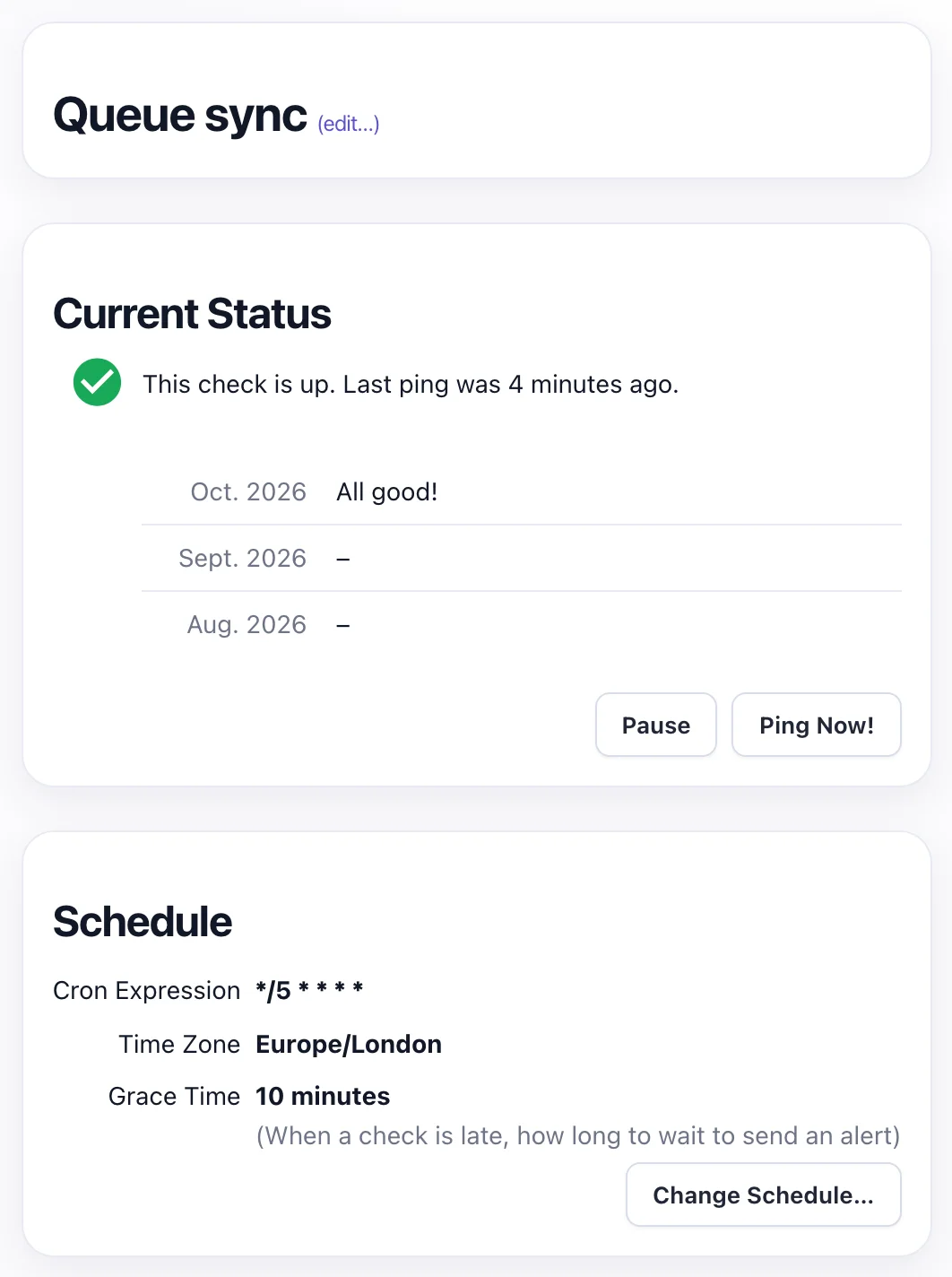
*/5 * * * * in Europe/London, and a 10-minute grace time.Set the grace time a little longer than the job normally takes. For a job that usually finishes in a minute, five to ten minutes is a reasonable start: short enough to hear about a problem within one or two missed runs, long enough not to alert on an ordinary slow run.
Two additions help with frequent jobs:
- Report failures straight away. Send the exit code instead of waiting for the grace time:
/home/sam/bin/sync.sh; curl -fsS -m 10 --retry 5 -o /dev/null https://watchgoose.com/ping/your-uuid-here/$?. A non-zero code marks the check as failed immediately. See signaling failures. - Catch runs that hang. Ping
https://watchgoose.com/ping/your-uuid-here/startwhen the job begins. Watchgoose records how long each run takes and alerts you if a run starts but doesn't finish within the grace time. This works independently of the schedule, even on a new check that hasn't had a success ping yet. See measuring script run time.
The Free plan includes 10 checks with no credit card required. The cron job monitoring docs cover the setup in more detail.
Frequently asked questions
What is the cron expression for every 5 minutes?
The expression is */5 * * * *. The */5 in the minute field means every fifth minute from 0 to 55, and the four asterisks mean every hour, day, month and weekday. Cron runs it 12 times an hour and 288 times a day.
Does */5 run five minutes after I save the crontab?
No. Cron matches the clock, not the time you saved. If you save the crontab at 10:03, the first run is at 10:05, followed by 10:10 and 10:15.
How do I run a cron job every 5 minutes during business hours?
Use */5 9-17 * * 1-5 to run every five minutes from 9:00 to 17:55, Monday to Friday. The hours follow the server's local time, so check its time zone first. To stop at 17:00 exactly, use 9-16 in the hour field and add a separate line for 0 17 * * 1-5.
How do I stop a cron job running every 5 minutes from overlapping?
Wrap the command in a lock so a new run exits while the previous one is still working. On Linux use flock -n, on FreeBSD and macOS use lockf -s -t 0, and on OpenBSD add the -s flag before the command in the crontab.
Can GitHub Actions run a workflow every 5 minutes?
Yes. Five minutes is the shortest interval GitHub Actions allows, written as cron: '*/5 * * * *' under on: schedule. Runs can be delayed when GitHub Actions is busy, especially at the start of every hour, so don't rely on exact timing.
Conclusion
*/5 * * * * is the whole schedule. The rest is making the job safe to run that often: full paths, a log, a lock so runs don't overlap, and a ping after each successful run so you hear about it when the runs stop.