
Docker Cron Jobs: How to Run and Monitor Scheduled Tasks in Containers
There are four common ways to run a cron job with Docker: the host's crontab starts a container with docker run --rm (or docker compose run, or docker exec), a cron daemon runs inside a container, a scheduler container such as supercronic runs the jobs, or the orchestrator schedules them, as a Kubernetes CronJob does. On a single server, the host crontab is the simplest. When the schedule has to ship with the app, use a supercronic container. On Kubernetes, use a CronJob. A classic cron daemon inside a container also works, but it needs extra steps for environment variables, logs and signals.
All of them start jobs, and none of them tells you when a run fails or never starts. The last section shows how to get an alert for both.
This guide is published by Watchgoose, a monitor for cron jobs and other scheduled work. We built and ran every Dockerfile, Compose file, crontab and manifest on this page on 28 October 2026. How we tested lists the versions.
Table of contents
- Which pattern to choose
- Run containers from the host crontab
- Run cron inside a container
- Use a scheduler container
- Kubernetes CronJob, Amazon ECS and Docker Swarm
- Common Docker cron problems
- Monitor Docker cron jobs
- Frequently asked questions
- Conclusion
Which pattern to choose
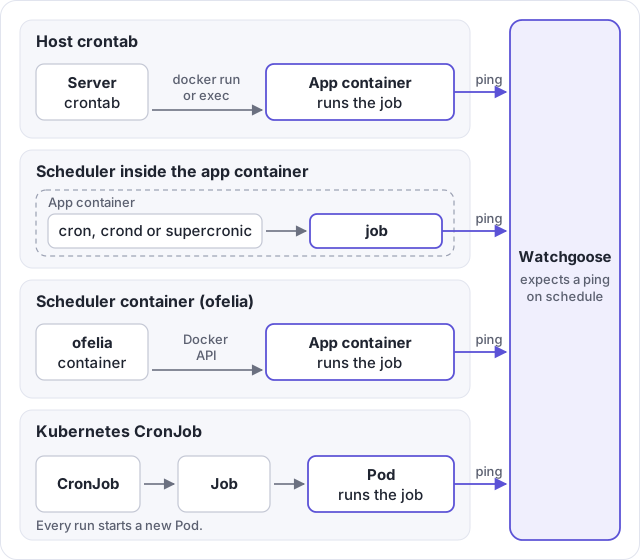
cron, BusyBox crond and supercronic all run inside the app container. In every pattern the job itself sends the ping, so the monitoring setup is the same.Scroll horizontally to see all columns.
| Pattern | Schedule lives in | Container variables in jobs | Job output | Overlap control | Good fit |
|---|---|---|---|---|---|
Host crontab with docker run, compose run or exec | The server's crontab | Yes, from --env-file, Compose or the running container | A log file on the host | flock -n or a fixed --name | One server you control |
Debian cron in a container | The image | Only if you load them from a file | Redirect to /proc/1/fd/1 | None | Porting an existing crontab |
BusyBox crond (Alpine) | The image | Yes | Redirect to /proc/1/fd/1 | None | Small images |
| supercronic | The image or a mounted file | Yes | Container log | On by default | Compose stacks, any container platform |
| ofelia | Docker labels or an INI file | Yes, for job-exec | ofelia's log | no-overlap | Commands in containers you already run |
| Kubernetes CronJob | The cluster | Yes, from the pod spec | kubectl logs | concurrencyPolicy: Forbid | Kubernetes clusters |
The host crontab keeps scheduler code out of your images, but the schedule lives on one machine and has to move when that server is replaced. A scheduler container keeps the schedule in the repository and deploys it with the app. supercronic was written for that job: it passes the container's environment to jobs, logs to stdout and stops cleanly on docker stop, which are the three things a classic cron daemon gets wrong in a container.
Run containers from the host crontab
Put the jobs in a file under /etc/cron.d/. Each line starts a short-lived container or runs a command in an existing one:
PATH=/usr/local/sbin:/usr/local/bin:/usr/sbin:/usr/bin:/sbin:/bin

# A new container from an image, removed when the job exits
30 2 * * * root docker run --rm --name nightly-report --env-file /etc/nightly-report.env registry.example.com/report:1.4.0 >> /var/log/nightly-report.log 2>&1

# A one-off container for a service in a Compose project
45 2 * * * root docker compose -f /srv/myapp/compose.yaml run --rm -T app /app/nightly-report.sh >> /var/log/nightly-report.log 2>&1

# A command inside a container that is already running
0 3 * * * root docker exec myapp-app-1 /app/nightly-report.sh >> /var/log/nightly-report.log 2>&1
Debian's cron gives jobs PATH=/usr/bin:/bin. If docker is installed in /usr/local/bin, every job fails with docker: not found (exit status 127), which is why the file sets PATH first.
--rm deletes the container when it exits, together with its logs, so the output goes to a file on the host. Cron starts jobs in the user's home directory, so docker compose needs -f to find the project, and -T turns off TTY allocation. docker exec runs with the running container's environment, but it fails if that container is stopped or was recreated under another name.
Files in /etc/cron.d/ must be owned by root and not writable by group or others. Their names may only contain letters, digits, underscores and hyphens, so cron ignores a file called report.cron.
docker run exits with the container's exit status, so cron and wrapper scripts see the job's real result. Docker keeps three codes for itself: 125 when the error is in Docker (missing image, bad flag, name already in use), 126 when the command can't be run and 127 when it can't be found.
The 125 for a name in use is handy. With a fixed --name, a second run can't start while the first container still exists, so the name works as overlap protection. For compose run and exec, put flock -n /run/lock/nightly-report.lock in front of the command: a new run then exits at once while the previous one holds the lock.
Run cron inside a container
Here a long-running container's main process is a cron daemon. That needs four things a normal server handles for you: cron in the foreground, the container's variables in jobs, job output in the container log, and signal handling.
Debian cron
FROM debian:trixie-slim
RUN apt-get update \
 && apt-get install -y --no-install-recommends cron curl ca-certificates tzdata \
 && rm -rf /var/lib/apt/lists/*
COPY entrypoint.sh nightly-report.sh with-ping.sh /app/
COPY crontab /etc/cron.d/nightly-report
RUN chmod 0644 /etc/cron.d/nightly-report && chmod 0755 /app/*.sh
ENTRYPOINT ["/app/entrypoint.sh"]
CMD ["cron", "-f"]
with-ping.sh is the monitoring wrapper from the monitoring section. cron -f keeps cron in the foreground; without -f it forks, the main process exits and the container stops.
Debian's cron clears the environment before it starts a job. In our test a job saw only HOME, LOGNAME, PATH, SHELL and PWD, and every variable passed with docker run -e was gone. The entrypoint saves the variables to a file when the container starts:
#!/bin/sh
set -e
# cron starts jobs with an almost empty environment, so save the
# container's variables to a file that each job loads first.
export -p > /etc/container.env
chmod 600 /etc/container.env
exec "$@"
export -p writes shell-quoted lines, so values with spaces and quotes survive. Each crontab line loads the file, then sends the job's output to the stdout and stderr of process 1, which is what docker logs shows:
# m h dom mon dow user command
30 2 * * * root . /etc/container.env; /app/nightly-report.sh > /proc/1/fd/1 2> /proc/1/fd/2
The redirect only works for jobs that run as root; other users get "Permission denied". Cron's own messages go to syslog, which the container doesn't have, so only job output reaches the log.
Alpine BusyBox crond
Alpine includes BusyBox crond, so you only add curl and time zone data:
FROM alpine:3.24
RUN apk add --no-cache curl tzdata
COPY nightly-report.sh with-ping.sh /app/
COPY crontab /etc/crontabs/root
RUN chmod 0755 /app/*.sh
CMD ["crond", "-f", "-d", "8"]
30 2 * * * /app/nightly-report.sh > /proc/1/fd/1 2> /proc/1/fd/2
/etc/crontabs/root has no user field. BusyBox crond passes its environment to jobs, so docker run -e variables arrive without an env file. -d 8 sends crond's own log, one line per job it starts, to stderr. With -l 8 those lines go to syslog and are lost.
Time zone and signals
Both daemons schedule jobs in the container's time zone: UTC, unless you set TZ, for example -e TZ=Europe/London. That needs time zone data in the image. debian:trixie-slim already has tzdata; Alpine doesn't, and without it TZ is silently ignored.
Neither daemon stops on SIGTERM when it runs as process 1. In our test, docker stop waited the full 10-second grace period and then killed both containers (exit status 137). With docker run --init, or init: true in Compose, a small init process forwards the signal, and both stopped in about a second.
Use a scheduler container
supercronic
supercronic is a cron implementation for containers, maintained by Aptible. On 28 October 2026 the latest release was v0.2.51, from 21 October 2026. It reads a normal crontab and:
- passes the container's environment to every job,
- logs each job's start, output and exit status to stderr,
- shuts down gracefully on SIGTERM instead of leaving running jobs to be killed,
- waits for a job to finish before starting it again, unless you pass
-overlapping, - reaps child processes as process 1, so it doesn't need
--init.
It also accepts an optional seconds field, honours TZ and CRON_TZ, checks a crontab with -test, and reloads it on SIGUSR2 or, with -inotify, when the file changes. It ignores crontab user fields; use USER in the Dockerfile instead.
Install the binary for your architecture and check its SHA-1 sum from the release notes:
FROM debian:trixie-slim
RUN apt-get update \
 && apt-get install -y --no-install-recommends curl ca-certificates tzdata \
 && rm -rf /var/lib/apt/lists/*

# https://github.com/aptible/supercronic/releases
ARG TARGETARCH
ARG SUPERCRONIC_VERSION=v0.2.51
RUN case "$TARGETARCH" in \
      amd64) sha1=1692066e350a88ff4d7d6474fe3c7a6c41ec5e89 ;; \
      arm64) sha1=9d4c2000493215a1898502b2fc2dada3e8ea8c7a ;; \
      *) echo "no checksum for $TARGETARCH" >&2; exit 1 ;; \
    esac \
 && curl -fsSLo /usr/local/bin/supercronic \
      "https://github.com/aptible/supercronic/releases/download/${SUPERCRONIC_VERSION}/supercronic-linux-${TARGETARCH}" \
 && echo "${sha1}  /usr/local/bin/supercronic" | sha1sum -c - \
 && chmod 0755 /usr/local/bin/supercronic

COPY nightly-report.sh with-ping.sh crontab /app/
RUN chmod 0755 /app/*.sh && supercronic -test /app/crontab

USER nobody
CMD ["supercronic", "/app/crontab"]
BuildKit, Docker's default builder, sets TARGETARCH, so the same file builds on amd64 and arm64. The crontab is a plain five-field one:
# Every day at 02:30 in the container's time zone
30 2 * * * /app/nightly-report.sh
In Compose, run the scheduler as a second service from the app's image, so it has the same code and variables:
services:
  app:
    image: registry.example.com/myapp:1.4.0
    env_file: .env
    restart: unless-stopped

  scheduler:
    image: registry.example.com/myapp:1.4.0
    command: ["supercronic", "/app/crontab"]
    env_file: .env
    environment:
      TZ: Europe/London
    restart: unless-stopped
Keep one scheduler per project. With two scheduler replicas, every job runs twice.
ofelia
ofelia reads jobs from Docker labels and runs them through the Docker API, inside a running container (job-exec) or in a new one (job-run). It is maintained: the latest stable release is 0.3.22 from 11 April 2026, 0.4.0 has been in beta since 2025, and the repository had commits in August 2026.
services:
  app:
    image: registry.example.com/myapp:1.4.0
    env_file: .env
    restart: unless-stopped
    labels:
      ofelia.enabled: "true"
      ofelia.job-exec.nightly-report.schedule: "0 30 2 * * *"
      ofelia.job-exec.nightly-report.command: "/app/with-ping.sh /app/nightly-report.sh"
      ofelia.job-exec.nightly-report.no-overlap: "true"

  ofelia:
    image: mcuadros/ofelia:0.3.22
    command: daemon --docker
    volumes:
      - /var/run/docker.sock:/var/run/docker.sock:ro
    depends_on: [app]
    restart: unless-stopped
ofelia 0.3.x needs a seconds field first: 0 30 2 * * * is 02:30:00. A five-field * * * * * is read as every second, and in our test the job ran every second. The schedule follows the ofelia container's time zone, so set TZ on the ofelia service if you don't want UTC. Also keep in mind that access to the Docker socket means control of the Docker daemon, which Docker's security docs say only trusted users should have.
A sleep loop
A container running while true; do job; sleep 3600; done needs no scheduler. The start time drifts by the job's duration and resets on every restart. That is fine for clearing a cache about once an hour, and wrong for a job that must run at 02:30.
Kubernetes CronJob, Amazon ECS and Docker Swarm
Kubernetes CronJob
A CronJob creates a Job, and so a pod, for every run. These fields control what happens when runs are late, slow or failing:
spec:
  schedule: "30 2 * * *"
  timeZone: "Europe/London"
  concurrencyPolicy: Forbid
  startingDeadlineSeconds: 600
  successfulJobsHistoryLimit: 3
  failedJobsHistoryLimit: 3
timeZonehas been stable since Kubernetes 1.27. Without it, the schedule follows kube-controller-manager's time zone. It sets when the job fires, not the clock in the pod: in our test a CronJob withtimeZone: "Asia/Tokyo"ran at the Tokyo hour whiledatein the pod printed UTC.CRON_TZ=orTZ=insidescheduleis rejected.concurrencyPolicydefaults toAllow, so a slow run and the next one overlap.Forbidskips the new run;Replacestops the old one.startingDeadlineSecondsis how late a missed run may still start. If the controller counts more than 100 missed runs, it starts nothing and logs an error; a deadline limits that count.successfulJobsHistoryLimit(default 3) andfailedJobsHistoryLimit(default 1) set how many finished Jobs, and their logs, are kept.
The Kubernetes docs say a CronJob creates a Job "approximately once" per scheduled time and can occasionally create two or none, so make jobs safe to run twice. The full manifest with monitoring is below.
Amazon ECS scheduled tasks
On ECS, a schedule is an Amazon EventBridge Scheduler schedule that calls the ECS RunTask API. AWS notes that the EventBridge Scheduler console has more options than the ECS console, including cron expressions in any time zone, retries and a dead-letter queue. A flexible time window lets a run start up to that many minutes late, so make your monitor's grace time cover it.
Docker Swarm
Swarm has no scheduled services. Swarm jobs (docker service create --mode replicated-job) run once and are never restarted after they complete. To repeat them you need something outside Swarm: a host crontab, ofelia's job-service-run, or swarm-cronjob, which reads schedules from service labels.
Common Docker cron problems
Scroll horizontally to see all columns.
| Symptom | Likely cause | Fix |
|---|---|---|
| Nothing runs after a reboot or deploy | Scheduler container not running | restart: unless-stopped |
| Container exits right after start | cron forked into the background | cron -f or crond -f |
| Job works by hand, fails from cron | Debian cron cleared the environment | Load a saved env file, or use supercronic |
docker: not found | Cron's short PATH | Set PATH in the crontab |
| Runs an hour early or late | Container on UTC, or TZ without tzdata | Set TZ and install tzdata; timeZone on Kubernetes |
Nothing in docker logs | Job output stays with cron | Redirect to /proc/1/fd/1, or use supercronic |
| Two copies run at once | A run outlasted the interval | flock -n, --name, no-overlap or Forbid |
docker stop takes 10 seconds | cron as process 1 ignores SIGTERM | --init or init: true |
| Failures go unnoticed | Nobody reads the exit status | Report it to a monitor |
To test a crontab, set the schedule to * * * * *, watch docker logs -f for a few minutes, then restore the real schedule. The cron expression tester shows the next run times of an expression, and the crontab syntax guide explains each field.
Monitor Docker cron jobs
Logs and exit codes only help if something reads them, and none of these schedulers can report a run that never started. When the scheduler container is stopped, the host is down or the image can't be pulled, no process is left to write an error.
Heartbeat monitoring covers that case: each run sends an HTTP request, and a service outside your infrastructure expects it on schedule. In Watchgoose, create a check with the job's cron expression and the container's time zone (or the CronJob's timeZone), and copy its ping URL.
This wrapper works for every pattern. It sends /start, runs the job, then sends the exit status. 0 means success; any other value marks the run as failed at once:
#!/bin/sh
# Usage: with-ping.sh COMMAND [ARGS...]
# Needs WATCHGOOSE_CHECK_URL in the environment.
curl -fsS -m 10 --retry 5 -o /dev/null "$WATCHGOOSE_CHECK_URL/start"

"$@"
status=$?

curl -fsS -m 10 --retry 5 -o /dev/null "$WATCHGOOSE_CHECK_URL/$status"
exit $status
-m 10 limits each request to 10 seconds and --retry 5 retries temporary errors, so a network problem can delay the job slightly but never stops it. The wrapper exits with the job's status, so the scheduler still sees the real result. debian:trixie-slim and alpine:3.24 don't include curl, which is why the Dockerfiles above install it.
On the host, put the wrapper in front of the Docker command and set the URL on the same line:
30 2 * * * root WATCHGOOSE_CHECK_URL=https://watchgoose.com/ping/your-uuid-here /usr/local/bin/with-ping.sh docker run --rm --name nightly-report --env-file /etc/nightly-report.env registry.example.com/report:1.4.0 >> /var/log/nightly-report.log 2>&1
Because it runs outside the container, it also reports Docker's own errors: a missing image, or a run blocked by a container that still has the same name, sends /125.
Inside containers, pass WATCHGOOSE_CHECK_URL like any other variable and change the job command to /app/with-ping.sh /app/nightly-report.sh. That applies to the Debian and BusyBox crontabs (keep . /etc/container.env; in front on Debian) and to the supercronic crontab. The ofelia example above already uses it.
Kubernetes CronJob with pings
Store the ping URL in a Secret:
kubectl create secret generic watchgoose --from-literal=nightly-report-url=https://watchgoose.com/ping/your-uuid-here
Then wrap the job in the container's command:
apiVersion: batch/v1
kind: CronJob
metadata:
  name: nightly-report
spec:
  schedule: "30 2 * * *"
  timeZone: "Europe/London"
  concurrencyPolicy: Forbid
  startingDeadlineSeconds: 600
  successfulJobsHistoryLimit: 3
  failedJobsHistoryLimit: 3
  jobTemplate:
    spec:
      backoffLimit: 0
      activeDeadlineSeconds: 3600
      template:
        spec:
          restartPolicy: Never
          containers:
            - name: report
              image: registry.example.com/report:1.4.0
              env:
                - name: WATCHGOOSE_CHECK_URL
                  valueFrom:
                    secretKeyRef:
                      name: watchgoose
                      key: nightly-report-url
              command: ["/bin/sh", "-c"]
              args:
                - |
                  curl -fsS -m 10 --retry 5 -o /dev/null "$WATCHGOOSE_CHECK_URL/start"
                  python /app/report.py
                  status=$?
                  curl -fsS -m 10 --retry 5 -o /dev/null "$WATCHGOOSE_CHECK_URL/$status"
                  exit $status
backoffLimit: 0 with restartPolicy: Never gives one attempt per run, and exit $status marks the Job failed when the job fails. If you allow retries, each attempt sends its own pings. activeDeadlineSeconds stops a run that hangs.
Check settings and first run
Set the grace time a little above the job's normal run time. When a success ping is later than the schedule plus the grace time, when a failure status arrives, or when a /start isn't followed by a result within the grace time, Watchgoose alerts you by email, Slack, Microsoft Teams, webhook or another of its 12+ alert channels.
A new check doesn't alert until its first success ping. Run the job once by hand, for example with kubectl create job --from=cronjob/nightly-report test-run or by running the crontab command through docker exec, and confirm the check's status changes from New to Up. A /start ping starts the run-time timer straight away, even on a new check.
The Free plan includes 10 checks with no credit card required. See also cron job monitoring, shell scripts, signaling failures, measuring run time and attaching job output. For jobs on the host itself, compare systemd timers and cron.
Frequently asked questions
How do I run a cron job in a Docker container?
Either schedule the container from the host crontab with docker run --rm, or run a scheduler inside a long-running container. For a scheduler inside the container, supercronic is the simplest choice: it reads a normal crontab, passes the container's environment to jobs and logs to stdout. A classic cron daemon also works, but it must run in the foreground with cron -f.
Why can't my cron job see Docker environment variables?
Debian's cron daemon clears the environment before it starts a job, so variables passed with docker run -e or Compose are missing. Save them to a file when the container starts, for example with export -p > /etc/container.env in the entrypoint, and load that file at the start of each crontab line. supercronic and BusyBox crond pass the environment through without this step.
How do I see cron job output in docker logs?
docker logs shows the stdout and stderr of process 1 in the container. Cron doesn't send job output there, so redirect each job with > /proc/1/fd/1 2> /proc/1/fd/2. This works for jobs that run as root. supercronic logs every job's output to the container log without any redirect.
Should I use the host crontab or cron inside the container?
Use the host crontab when you run one server and want images without scheduler code. docker run --rm returns the job's exit status and needs nothing extra in the image. Use a scheduler container, ideally supercronic, when the schedule should be versioned and deployed with the app, or when you don't have shell access to the host.
How do I set the time zone for cron in Docker?
Set the TZ environment variable on the container, for example TZ=Europe/London. The image needs time zone data: Debian slim images include it, but on Alpine you must install tzdata, or the setting is ignored and the clock stays on UTC. On Kubernetes, set spec.timeZone on the CronJob instead.
Conclusion
On one server, run docker run --rm from the host crontab with a full PATH and a fixed --name. When the schedule belongs in the repository, run supercronic as its own service. On Kubernetes, use a CronJob with timeZone and concurrencyPolicy: Forbid. Whichever you choose, report each run's exit status to a monitor outside the host, so you also hear about the runs that never started.
How we tested
Every Dockerfile, Compose file, crontab and manifest on this page was built and run on 28 October 2026 with Docker Engine 29.8.2, Docker Compose 5.5, debian:trixie-slim (cron 3.0pl1-197), alpine:3.24 (BusyBox 1.37.0), supercronic v0.2.51, ofelia 0.3.22 and Kubernetes 1.37.0 on minikube. Schedules were shortened to every minute, and pings went to a local test server.
References
- supercronic on GitHub and supercronic v0.2.51 release
- ofelia on GitHub and ofelia releases
- Kubernetes CronJob
- docker run exit status
- docker container stop
- Compose services reference: init and restart
- docker service create: jobs
- Docker security: daemon attack surface
- cron(8) on Debian trixie
- Amazon ECS: scheduling tasks with EventBridge Scheduler
- swarm-cronjob