
Systemd Timer vs Cron: When to Use Each and How to Convert
Use cron when you want a one-line schedule that works on almost any Unix system, including macOS and the BSDs, and in containers that don't run systemd. Use a systemd timer when the job runs on a Linux host with systemd and you want what a service unit gives you: output in the journal, a catch-up run after downtime with Persistent=true, protection against overlapping runs, dependencies on other units, and resource limits. A timer takes two files (a .service and a .timer) instead of one crontab line, and its OnCalendar= syntax is different from cron's five fields.
This guide is published by Watchgoose, a monitor for cron jobs and other scheduled work. We tested every unit file, OnCalendar expression and crontab line on this page on 28 October 2026. How we tested lists the versions.
Table of contents
- Systemd timer or cron: the short answer
- Systemd timers vs cron compared
- Convert a cron job to a systemd timer
- Cron to OnCalendar conversion table
- Gotchas when you move from cron to systemd timers
- Monitor cron jobs and systemd timers
- Frequently asked questions
- Conclusion
Systemd timer or cron: the short answer
Cron is still the simplest tool for a short command on one machine. You run crontab -e, add a line, and you are done. The same line works on Debian, Fedora, FreeBSD and macOS (where Apple has deprecated cron in favour of launchd but still supports it). If the job already writes its own log and you don't care about runs missed while the machine was off, a timer adds little.
A systemd timer is the better fit when:
- the machine is sometimes off or rebooting at the scheduled time, and you want the missed run to happen when it comes back (
Persistent=true); - you want each run's output and exit status in the journal, readable with
journalctl -u; - the job must not start again while the previous run is still going;
- the job needs a mount, the network or another service first;
- you want to cap memory or CPU, run it under a locked-down sandbox, or start it by hand with
systemctl startexactly as the scheduler would.
Debian already uses timers for its own housekeeping: systemctl list-timers on a fresh Debian 13 system shows apt-daily.timer and man-db.timer.
Systemd timers vs cron compared
Scroll horizontally to see all columns.
| Feature | cron | systemd timer |
|---|---|---|
| Schedule syntax | Five fields: minute, hour, day of month, month, day of week (0 3 * * *) | OnCalendar= calendar events (*-*-* 03:00:00), or intervals such as OnBootSec= and OnUnitActiveSec= |
| Files to edit | One line in a crontab | A .service and a .timer, then systemctl daemon-reload |
| Missed runs | Skipped if the machine is off (anacron can catch up daily jobs) | Persistent=true runs one catch-up when the timer starts again |
| Output and logs | Mailed to the crontab owner or MAILTO; lost if mail isn't set up | stdout and stderr go to the journal; journalctl -u name.service |
| Overlapping runs | No protection; use flock | The timer does not start the service again while it is still running |
| Random delay | Not in Debian cron; cronie has RANDOM_DELAY and ~ ranges | RandomizedDelaySec= |
| Dependencies | None | After=, Requires=, RequiresMountsFor= and the rest of the unit options |
| Resource limits and sandboxing | None built in | MemoryMax=, CPUQuota=, ProtectSystem=, DynamicUser= and more |
| Per-user jobs | crontab -e as that user | systemctl --user; needs lingering to run while the user is logged out |
| Time zone | System time zone (cronie also has CRON_TZ) | System time zone, or a zone at the end of the expression |
| Shortest interval | One minute | Seconds, but runs can land up to 1 minute late unless you lower AccuracySec= |
| Portability | Linux, BSDs, macOS, and containers without systemd | Linux with systemd only; not in most containers |
| Test a run by hand | Copy the command and hope the environment matches | systemctl start name.service runs it in the same environment |
Convert a cron job to a systemd timer
Take a backup script that cron runs every night at 03:00:
0 3 * * * /usr/local/bin/backup.sh
The systemd version is a service unit that says what to run and a timer unit that says when. Both go in /etc/systemd/system/ and share a base name, so backup.timer starts backup.service without any extra setting.
Write the service unit
Create /etc/systemd/system/backup.service:
[Unit]
Description=Nightly backup

[Service]
Type=oneshot
ExecStart=/usr/local/bin/backup.sh
Type=oneshot tells systemd the command runs and exits, which is what a cron-style job does. There is no [Install] section: the timer starts this service, so you never enable it directly.
Write the timer unit
Create /etc/systemd/system/backup.timer:
[Unit]
Description=Run backup.service every day at 03:00

[Timer]
OnCalendar=*-*-* 03:00:00
Persistent=true

[Install]
WantedBy=timers.target
*-*-* 03:00:00 means any year, any month, any day at 03:00:00. The short form 03:00 means the same thing. Persistent=true stores the time of the last run on disk (in /var/lib/systemd/timers/), so if the machine was off at 03:00, the backup runs as soon as the timer starts again after boot.
Enable and check the timer
Check the files, load them and start the timer (not the service):
sudo systemd-analyze verify /etc/systemd/system/backup.service /etc/systemd/system/backup.timer
sudo systemctl daemon-reload
sudo systemctl enable --now backup.timer
--now starts the timer straight away as well as enabling it at boot. Then confirm when it will fire:
$ systemctl list-timers backup.timer
NEXT                            LEFT LAST PASSED UNIT         ACTIVATES
Thu 2026-10-29 03:00:00 UTC 5h 52min -         - backup.timer backup.service
Before you write a schedule into a unit file, test the expression. systemd-analyze calendar shows the normalized form and the next run times, and fails if the expression is invalid:
$ systemd-analyze calendar --iterations=3 "Mon..Fri 9:00"
  Original form: Mon..Fri 9:00
Normalized form: Mon..Fri *-*-* 09:00:00
    Next elapse: Thu 2026-10-29 09:00:00 UTC
       From now: 11h left
   Iteration #2: Fri 2026-10-30 09:00:00 UTC
       From now: 1 day 11h left
   Iteration #3: Mon 2026-11-02 09:00:00 UTC
       From now: 4 days left
To run the job right now, start the service, then read its status and output:
sudo systemctl start backup.service
systemctl status backup.service
journalctl -u backup.service -n 50
systemctl start waits until a oneshot service finishes and returns a non-zero exit code if the job failed, which makes it handy in scripts. After any edit to a unit file, run sudo systemctl daemon-reload again.
Per-user timers with systemctl --user
A job from a normal user's crontab becomes a user unit. The files go in ~/.config/systemd/user/ and every command takes --user, with no sudo:
# ~/.config/systemd/user/report.service
[Unit]
Description=Weekday report

[Service]
Type=oneshot
ExecStart=%h/bin/report.sh
# ~/.config/systemd/user/report.timer
[Unit]
Description=Run report.service on weekdays at 09:00

[Timer]
OnCalendar=Mon..Fri 09:00
Persistent=true

[Install]
WantedBy=timers.target
systemctl --user daemon-reload
systemctl --user enable --now report.timer
systemctl --user list-timers
journalctl --user -u report.service
%h is the user's home directory. User timers only run while that user's systemd instance is running, which by default means while they are logged in. See lingering below.
Remove the old crontab line
Once systemctl list-timers shows the next run and a manual systemctl start works, delete the line from the crontab. If you leave it, the job runs twice. Watch the first scheduled run in the journal before you move on to the next job.
Cron to OnCalendar conversion table
Every expression below was checked with systemd-analyze calendar (systemd 257) and with the parser Watchgoose uses for OnCalendar checks. Both returned the same next run times, so you can paste the same text into a Watchgoose check.
Scroll horizontally to see all columns.
| Schedule | Crontab | OnCalendar | Normalized form |
|---|---|---|---|
| Every minute | * * * * * | minutely | *-*-* *:*:00 |
| Every 5 minutes | */5 * * * * | *:0/5 | *-*-* *:00/5:00 |
| Every 15 minutes | */15 * * * * | *:0/15 | *-*-* *:00/15:00 |
| Every hour | 0 * * * * | hourly | *-*-* *:00:00 |
| Every 6 hours | 0 */6 * * * | 0/6:00 | *-*-* 00/6:00:00 |
| Daily at midnight | 0 0 * * * | daily | *-*-* 00:00:00 |
| Daily at 02:30 | 30 2 * * * | 02:30 | *-*-* 02:30:00 |
| Weekdays at 09:00 | 0 9 * * 1-5 | Mon..Fri 09:00 | Mon..Fri *-*-* 09:00:00 |
| Every 2 hours, 09:00 to 17:00, weekdays | 0 9-17/2 * * 1-5 | Mon..Fri 09..17/2:00 | Mon..Fri *-*-* 09..17/2:00:00 |
| Sundays at midnight | 0 0 * * 0 | Sun 00:00 | Sun *-*-* 00:00:00 |
| Mondays at midnight | 0 0 * * 1 | weekly | Mon *-*-* 00:00:00 |
| First of the month | 0 0 1 * * | monthly | *-*-01 00:00:00 |
| Last day of the month at 23:00 | No standard form | *-*~01 23:00 | *-*~01 23:00:00 |
| 1 January at 04:00 | 0 4 1 1 * | *-01-01 04:00 | *-01-01 04:00:00 |
| 1st of the month and every Monday at 09:00 | 0 9 1 * 1 | Two lines: *-*-01 09:00 and Mon *-*-* 09:00 | Same as the input |
| Every 10 seconds | Not possible | *:*:0/10 (set AccuracySec=1s) | *-*-* *:*:00/10 |
Three rules cover most conversions:
- Order and separators. OnCalendar reads
weekday year-month-day hour:minute:second. Steps use/as in cron, but ranges use..(Mon..Fri,09..17), and~counts days back from the end of the month. - Seconds default to zero. If you leave out the seconds, systemd adds
:00. If you leave out the date, it means every day; if you leave out the time, it means midnight. - Day of month and weekday. In cron, when both day fields are restricted, a run matches either one:
0 9 1 * 1fires on the 1st and on every Monday. In OnCalendar both must match:Mon *-*-01 09:00fires only when the 1st is a Monday. To keep the cron meaning, put twoOnCalendar=lines in the timer.
systemd-analyze calendar "0 9 * * 1-5" fails with "Invalid argument", so a pasted cron line is caught before it reaches a unit file. For more cron patterns, see the crontab syntax examples.
Gotchas when you move from cron to systemd timers
Time zones
An OnCalendar= expression uses the system time zone (timedatectl shows it) unless you add a zone at the end: OnCalendar=*-*-* 03:00:00 Europe/London runs at 03:00 London time all year, which is 02:00 UTC in summer. Debian's cron always uses the system time zone. Setting TZ= in a Debian crontab changes the environment of the commands, not the schedule. Cronie, the cron on Fedora and RHEL, has CRON_TZ for that.
A monitor that checks the schedule needs the same zone, or it will expect the run an hour early or late for part of the year.
AccuracySec delays runs by up to a minute
AccuracySec= defaults to one minute. systemd may fire the timer anywhere in that window after the scheduled time, at a position that is random per host but stable, so it can group wake-ups and save power. For most jobs that doesn't matter. For a timer that runs every few seconds, or a job that must start on the exact second, set AccuracySec=1s.
RandomizedDelaySec= is a different setting. It defaults to 0 and adds a random delay before each run, which spreads load when many machines share the same schedule. If you use it, give your monitor a grace time longer than the delay.
Persistent= only works with OnCalendar
Persistent=true has no effect on OnBootSec=, OnUnitActiveSec= or the other interval settings. It also runs one catch-up run, not one for every missed slot: in our test, a per-minute timer that was stopped for 45 seconds across a scheduled minute ran once as soon as it started again, and an identical timer without Persistent= didn't run until the next minute.
The catch-up happens when the timer starts, usually at boot, so a 03:00 backup on a laptop that was off all night runs while you are using it.
User timers stop at logout without lingering
A user's systemd instance starts at login and stops when the last session ends. A user crontab keeps running when the user is logged out; a user timer doesn't, unless you enable lingering:
sudo loginctl enable-linger alice
With lingering on, the user manager starts at boot and keeps running after logout. ls /var/lib/systemd/linger lists the users who have it.
The environment is different
Neither cron nor systemd runs your job with your login shell's environment, and they differ from each other. On our Debian test box, a cron job got HOME, LOGNAME, SHELL=/bin/sh and PATH=/usr/bin:/bin. A system service got PATH=/usr/local/sbin:/usr/local/bin:/usr/sbin:/usr/bin, LANG and USER, but no HOME. Scripts that depend on ~, a virtualenv or tools in another directory need full paths or explicit settings.
In a unit file, set variables with Environment=NAME=value or EnvironmentFile=. Escaping is also different. In a crontab, % means a new line and must be written \%. In a unit file, % starts a specifier such as %h, so a literal percent sign is %%, and a literal $ is $$. A cron line like date +\%F becomes date +%%F in ExecStart=.
Overlapping runs
If a run is still going when the timer fires again, systemd leaves it running and does not start a second copy. In our test, a 25-second job on a 10-second timer started every 25 seconds, never twice at once. Cron starts the command again regardless. If you stay with cron, wrap slow jobs in flock -n /tmp/backup.lock.
The flip side is that a hung oneshot service blocks every later run. Set TimeoutStartSec= on the service so systemd kills a run that takes too long, and monitor the job so you hear about it.
Containers, macOS and BSD
Timers need systemd running as the init system. Most container images don't run it (to test this guide's units we had to start a Debian container with --privileged and the host's cgroup tree mounted), so containers usually use cron or the platform's scheduler; see cron jobs in Docker. macOS uses launchd and the BSDs use cron.
Monitor cron jobs and systemd timers
Both schedulers only start the job. Neither tells anyone when a run doesn't happen: if the server is down, the timer was never enabled, the crontab line was deleted during a migration, or the job hangs, there is nothing left to send an alert. The journal and cron mail record what ran, not what should have run.
Heartbeat monitoring covers this. The job sends an HTTP request when it finishes, and a service outside the server expects that request on schedule. In Watchgoose, create a check with the job's schedule and the server's time zone, copy its ping URL, and add the pings below.
Monitor a cron job
Send a start ping, run the job, then send its exit status:
0 3 * * * curl -fsS -m 10 --retry 5 -o /dev/null https://watchgoose.com/ping/your-uuid-here/start; /usr/local/bin/backup.sh; curl -fsS -m 10 --retry 5 -o /dev/null https://watchgoose.com/ping/your-uuid-here/$?
$? is the backup script's exit status. A 0 counts as success; anything from 1 to 255 marks the check as failed straight away. -m 10 and --retry 5 keep a slow network from hanging the job or losing a ping, and because the pings are separate commands, a failed ping never stops the backup. The cron monitoring docs explain each curl flag.
Monitor a systemd timer
For a timer, put the pings in the service unit. ExecStartPre= sends the start ping, and ExecStopPost= reports the result after the main command ends, whether it succeeded or not:
[Unit]
Description=Nightly backup

[Service]
Type=oneshot
Environment=WATCHGOOSE_CHECK_URL=https://watchgoose.com/ping/your-uuid-here
TimeoutStartSec=2h
ExecStartPre=-/usr/bin/curl -fsS -m 10 --retry 5 -o /dev/null ${WATCHGOOSE_CHECK_URL}/start
ExecStart=/usr/local/bin/backup.sh
ExecStopPost=-/bin/sh -c 'case "$$SERVICE_RESULT:$$EXIT_CODE:$$EXIT_STATUS" in success:*) s=0 ;; *:exited:[1-9]*) s=$$EXIT_STATUS ;; *) s=fail ;; esac; curl -fsS -m 10 --retry 5 -o /dev/null "$$WATCHGOOSE_CHECK_URL/$$s"'
How it works:
- The
-in front of both curl commands tells systemd to ignore a curl failure. Without it, a failed start ping stops the job from running, and a failed final ping marks a successful run as failed. - systemd passes
$SERVICE_RESULT,$EXIT_CODEand$EXIT_STATUStoExecStopPost=. Thecaseline sends/0when the service succeeded and the exit status when the script exited with an error. If the run was killed (for example byTimeoutStartSec=) or the script never started, it sends/fail. $$is how you write a literal$in a unit file, so the shell, not systemd, reads those variables.
In our tests, a job that succeeded, exited with status 3, hung past its timeout, failed an earlier ExecStartPre= step, or had a missing script sent /0, /3, /fail, /fail and /203. The shorter ExecStopPost=-curl ... https://watchgoose.com/ping/your-uuid-here/${EXIT_STATUS} works when the script exits normally. But a killed run sets $EXIT_STATUS to a signal name such as TERM, which isn't a valid ping URL, and if the main process never starts the variable is empty, so the request goes to the plain success URL.
OnFailure= starts another unit when this one fails, which suits a host-wide failure hook, but it never fires when the timer doesn't run at all. Our systemd monitoring docs also show runitor, a wrapper that sends the pings and captures output.
Use the same OnCalendar schedule in Watchgoose
Watchgoose checks accept OnCalendar expressions directly, so you don't have to translate the timer back into cron. In the check's schedule settings, choose OnCalendar and paste the value from the timer, for example *-*-* 03:00:00. For a timer with two OnCalendar= lines, put each expression on its own line. Set the time zone to the server's zone (or keep the zone inside the expression), and set a grace time longer than the job's usual run time plus any RandomizedDelaySec=.
Then run the job once with sudo systemctl start backup.service, or wait for its first scheduled run, and confirm the check's status changes from New to Up. A new check doesn't alert until its first success ping. After that, if a ping is late, Watchgoose waits for the grace time and alerts you by email, Slack, Microsoft Teams, webhook or another of its 12+ alert channels. A /start ping starts the run-time timer immediately, even on a new check, so a first run that starts and hangs still gets reported.
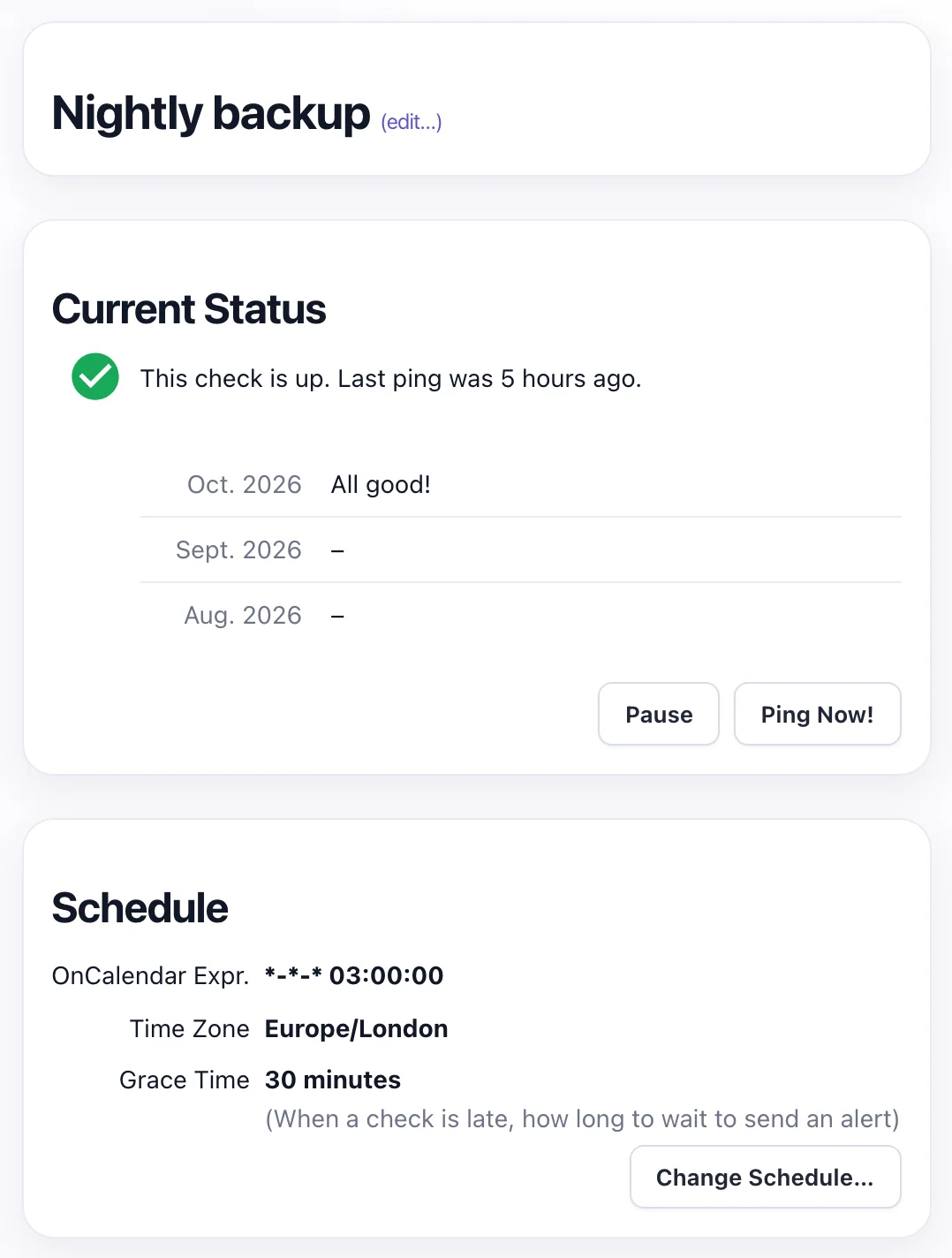
OnCalendar expression *-*-* 03:00:00 pasted as it is, the Europe/London time zone and a 30-minute grace time.The Free plan includes 10 checks with no credit card required. See check schedules, signaling failures and measuring run time for the details, and attaching logs if you want the job's output stored with each ping.
Frequently asked questions
Are systemd timers better than cron?
For jobs on a Linux server with systemd, timers give you more: journal logging, a catch-up run after downtime with Persistent=true, no overlapping runs, dependencies and resource limits. Cron is simpler, needs one line instead of two files, and works on macOS and the BSDs as well as Linux. Pick the timer when you need those features and cron when you need portability or speed of setup.
How do I convert a cron job to a systemd timer?
Create a .service file with Type=oneshot and the command in ExecStart, and a .timer file with the same base name, an OnCalendar line for the schedule and WantedBy=timers.target. Run systemctl daemon-reload, then systemctl enable --now name.timer. Check the next run with systemctl list-timers, then remove the old crontab line so the job doesn't run twice.
What is OnCalendar in systemd?
OnCalendar is the timer setting that runs a service at calendar times. Its format is weekday, then year-month-day, then hour:minute:second, for example Mon..Fri *-*-* 09:00:00 for weekdays at 9 a.m. Shorthands such as daily, weekly and hourly also work. Test any expression with systemd-analyze calendar, which prints the normalized form and the next run times.
Do systemd timers run jobs missed while the computer was off?
Only if the timer has Persistent=true and uses OnCalendar. systemd then stores the last run time on disk and starts the service once when the timer starts again, usually at boot. It runs one catch-up, not one for every missed slot. Without Persistent=true, a calendar run missed while the machine was off is skipped, the same as with cron.
How do I check if a systemd timer ran?
Run systemctl list-timers to see each timer's last and next run. Then use systemctl status name.service to see how the last run ended and journalctl -u name.service to read its output. These show what happened on that machine. To get an alert when a run doesn't happen at all, have the service send a ping to an outside monitor.
Conclusion
Keep cron for short, portable jobs where one line is enough. Move a job to a systemd timer when it runs on a systemd host and benefits from journal logs, catch-up runs, overlap protection, dependencies or limits. Test each schedule with systemd-analyze calendar, check the day-field rule, time zone and environment, and add a heartbeat check so you hear about runs that don't happen.
How we tested
Every unit file, OnCalendar expression and crontab line was tested on 28 October 2026 with systemd 257 (257.13) and Debian cron 3.0pl1-197 on Debian 13 (trixie) in Docker. Every OnCalendar expression was also checked with the parser Watchgoose uses (the oncalendar 1.1 Python package).
References
- systemd.timer(5)
- systemd.time(7): calendar events
- systemd.exec(5): environment variables passed to ExecStopPost
- systemd.service(5)
- systemd.unit(5): specifiers and OnFailure
- loginctl(1): enable-linger
- systemd-analyze(1)
- Debian crontab(5) and Debian cron(8)
- cronie crontab(5)
- Apple: Scheduling timed jobs (launchd and cron)
- oncalendar Python package