
Microsoft Teams Alerts for Cron Jobs: Workflows Webhooks and Heartbeat Monitoring
To get Microsoft Teams alerts for cron jobs, create a webhook with the Teams Workflows app and POST an Adaptive Card to it. The old Office 365 Connector "Incoming Webhook" no longer works, because Microsoft switched connectors off in May 2026. A wrapper script can post to the Workflows URL when a job exits with an error, or a heartbeat monitor can post for you when the job reports a failure or its ping doesn't arrive on time. The script needs no other service, but it can't report a run that never started. A heartbeat monitor can.
This guide is published by Watchgoose, a monitor for cron jobs and other scheduled work. We ran both wrappers on macOS and under cron on Debian 13 on 29 October 2026, posting to a local stand-in for the Workflows webhook, not to real Microsoft Teams. How we tested lists the versions.
Table of contents
- Two ways to send cron alerts to Teams
- Teams incoming webhooks are retired: use Workflows
- Create a Workflows webhook for a channel
- A bash wrapper that posts failures to Teams
- The same wrapper in Python
- Build the Adaptive Card
- Rate limits and alert floods
- Webhook script vs heartbeat monitor
- Monitor cron jobs and alert Teams with Watchgoose
- Frequently asked questions
- Conclusion
Two ways to send cron alerts to Teams
1. The job posts to Teams itself. A wrapper runs your command and, if the exit status isn't zero, sends an Adaptive Card to a Workflows webhook. This covers a job that runs but fails.
2. A monitor posts to Teams for the job. The job pings a monitoring service when it finishes. The service knows the schedule, and if the ping is late by more than a grace period, it posts to Teams from outside your server.
Approach 1 posts nothing when no process is left to report: the server is off, cron has stopped, the crontab line was deleted or the job hangs. A quiet channel then looks the same as a healthy job.
Teams incoming webhooks are retired: use Workflows
Older tutorials tell you to add the "Incoming Webhook" connector to a channel. Microsoft announced the retirement of Office 365 Connectors in Teams in July 2024 and moved the deadline several times; its final update, dated 14 April 2026, set the shutdown rollout for 18 to 22 May 2026. Microsoft's developer docs now say the connectors "were retired in May 2026".
The replacement is a workflow in the Teams Workflows app, which runs on Power Automate. It starts with the trigger When a Teams webhook request is received and gives you a URL to POST to. What changed for scripts:
- Payload. Microsoft's trigger reference lists two body formats: Adaptive Cards in an
attachmentsarray (shown below) and, since February 2026, a single MessageCard. Scripts that send only{"text": "..."}should switch to a card. - Sender. Posts appear as the Workflows bot ("Flow bot"). Adaptive Card payloads can't set their own name or icon.
- Owner. A workflow belongs to the user who created it, not to the channel, and can become an orphan if that person leaves. Add a co-owner to alert workflows.
- URL. Webhook trigger URLs that contained
logic.azure.commoved to new URLs, and the old ones stopped working on 30 November 2025. Microsoft warns the new URLs may be longer than 255 characters.
Create a Workflows webhook for a channel
You need a Microsoft 365 work or school account, with the Workflows app allowed in your organization. Workflows runs on Power Automate inside a Microsoft 365 tenant, and the free personal version of Teams (teams.live.com) has no team channels and no Workflows app, so it can't create these webhooks. If the Workflows option is missing from your channel menu, ask your Teams admin whether the app is blocked.
Microsoft's steps:
- In Teams, go to the team and channel that should receive alerts.
- Click More options (...) next to the channel and select Workflows.
- Search the templates for "webhook" and pick Send webhook alerts to a channel. Older guides call it "Post to a channel when a webhook request is received".
- Check the team and channel, then click Save.
- Copy the webhook URL from the workflow's details page.
For a group chat, use Send webhook alerts to a chat. Avoid the "from specific people" and "from people in an org" variants: Microsoft's connector reference says a trigger limited to users in your tenant needs an authentication token in every request, and the scripts below don't send one.
Private channels: Microsoft's Teams developer docs (updated 28 October 2026) say Workflows webhooks support them, but the Teams connector reference still lists posting to a private channel as unsupported. Test it in your tenant first.
Keep the webhook URL secret
With the plain template, anyone who has the URL can post to your channel. Keep it out of the crontab and out of scripts you commit. Create ~/.config/cron-teams.env with an editor, so the URL stays out of your shell history:
export TEAMS_WEBHOOK_URL='paste-the-workflow-URL-here'
Keep the single quotes, so the shell leaves the URL alone. Then lock the file down:
chmod 600 ~/.config/cron-teams.env
Test the webhook
Load the file into your shell, then send a minimal Adaptive Card:
. ~/.config/cron-teams.env
curl -fsS -m 10 -H 'Content-Type: application/json' \
  -w 'HTTP %{http_code}\n' -o /dev/null \
  --data '{"type":"message","attachments":[{"contentType":"application/vnd.microsoft.card.adaptive","contentUrl":null,"content":{"$schema":"http://adaptivecards.io/schemas/adaptive-card.json","type":"AdaptiveCard","version":"1.2","body":[{"type":"TextBlock","text":"Hello from cron","wrap":true}]}}]}' \
  "$TEAMS_WEBHOOK_URL"
A Workflows URL answers HTTP 202 Accepted, which only means the flow started a run. A later step posts the card, and if it fails (bad card JSON, a turned-off flow, a channel it can't post to), the caller still got its 202. If nothing appears, open the workflow's run history in the Workflows app.
A bash wrapper that posts failures to Teams
Save this as /usr/local/bin/teams-on-fail.sh and run chmod +x /usr/local/bin/teams-on-fail.sh. It needs curl and jq.
#!/usr/bin/env bash
# Run a command. Post an Adaptive Card to a Teams Workflows webhook when the
# command starts failing and when it recovers.
# Usage: teams-on-fail.sh JOB_NAME COMMAND [ARGS...]
# Alerting is best effort: the command always runs, and the wrapper exits
# with the command's own status.
set -u

job="${1:-job}"; shift

log=$(mktemp) || exec "$@"    # no temp file: run the job without alerts
trap 'rm -f "$log"' EXIT

"$@" >"$log" 2>&1
status=$?
cat "$log"    # keep the output in cron's mail or log as before

# Read the URL in a subshell, so a broken env file can't end this script.
env_file="${TEAMS_ENV_FILE:-$HOME/.config/cron-teams.env}"
if [ -z "${TEAMS_WEBHOOK_URL:-}" ] && [ -r "$env_file" ]; then
  TEAMS_WEBHOOK_URL=$( . "$env_file" >/dev/null 2>&1; printf '%s' "${TEAMS_WEBHOOK_URL:-}" )
fi
state_dir="${XDG_STATE_HOME:-$HOME/.local/state}/cron-teams"
state_file="$state_dir/$(printf '%s' "$job" | tr -c 'A-Za-z0-9._-' '_').failed"

post() {
  # $1 = title, $2 = color (Attention or Good), $3 = output to show (may be empty)
  if [ -z "${TEAMS_WEBHOOK_URL:-}" ]; then
    echo "teams-on-fail: TEAMS_WEBHOOK_URL is not set, no alert sent" >&2
    return 1
  fi
  payload=$(jq -cn --arg title "$1" --arg color "$2" --arg out "$3" \
    --arg host "$(hostname)" --arg when "$(date -u '+%Y-%m-%d %H:%M UTC')" \
    --arg status "$status" '
    {
      type: "message",
      attachments: [{
        contentType: "application/vnd.microsoft.card.adaptive",
        contentUrl: null,
        content: {
          "$schema": "http://adaptivecards.io/schemas/adaptive-card.json",
          type: "AdaptiveCard",
          version: "1.2",
          body: ([
            { type: "TextBlock", text: $title, weight: "Bolder",
              size: "Medium", color: $color, wrap: true },
            { type: "FactSet", facts: [
                { title: "Host", value: $host },
                { title: "Exit status", value: $status },
                { title: "Finished", value: $when } ] }
          ] + (if $out == "" then [] else [
            { type: "TextBlock", text: ($out | .[-3000:] | split("\n") | join("\n\n")),
              fontType: "Monospace", wrap: true }
          ] end))
        }
      }]
    }') || return 1
  curl -fsS -m 10 --retry 3 -o /dev/null \
    -H 'Content-Type: application/json' \
    --data-binary "$payload" "$TEAMS_WEBHOOK_URL" && return 0
  echo "teams-on-fail: could not post to Teams" >&2
  return 1
}

if [ "$status" -ne 0 ]; then
  if [ ! -e "$state_file" ]; then
    post "$job failed on $(hostname) (exit status $status)" Attention \
      "$(tail -n 20 "$log")" \
      && { mkdir -p "$state_dir" && touch "$state_file"; }
  fi
elif [ -e "$state_file" ]; then
  post "$job is working again on $(hostname)" Good "" \
    && rm -f "$state_file"
fi

exit "$status"
Use it in the crontab like this:
PATH=/usr/local/bin:/usr/bin:/bin
30 2 * * * /usr/local/bin/teams-on-fail.sh nightly-backup /usr/local/bin/backup.sh
Notes on the script:
- The command runs first. A missing, malformed or unreachable URL, a broken or unreadable env file, an HTTP 4xx or 5xx answer or a state directory that can't be created only prints a message on stderr. The wrapper always exits with the command's status, including bash's 127 for a missing command, 126 for a file that isn't executable and 143 for a job killed by SIGTERM.
jq --argdoes the JSON escaping, so quotes, backslashes, tabs and non-ASCII text in the output can't break the payload.- The first failure posts and creates a state file. Later failures stay quiet until a successful run posts a recovery card. If a post fails, no file is created and the next failing run tries again. A 202 counts as success, so check the channel after the first real alert.
--retry 3repeats the request after a timeout or an HTTP 408, 429, 500, 502, 503 or 504, waiting 1, 2 and 4 seconds. A 400 or 404 is not retried.- Keep the
PATHline. Cron's defaultPATHis minimal, and the wrapper needsjqandcurl.
On a shared server, other users can see the URL in ps while curl runs; the Python version keeps it inside the process.
Cron starts each run on schedule even if the last one is still going. In our Debian test, a 70-second job scheduled every minute always had two copies running, and its failure still posted once. To skip overlapping runs, pass the wrapper flock -n /run/lock/backup.lock /usr/local/bin/backup.sh: a skipped run exits with status 1 and alerts. To turn a hang into a failure, pass timeout 2h /usr/local/bin/backup.sh, which exits with status 124 when time runs out.
The same wrapper in Python
This version uses only the standard library and needs Python 3.9 or later. Save it as /usr/local/bin/teams_on_fail.py and run chmod +x /usr/local/bin/teams_on_fail.py.
#!/usr/bin/env python3
"""Run a command. Post an Adaptive Card to a Teams Workflows webhook when the
command starts failing and when it recovers.

Usage: teams_on_fail.py JOB_NAME COMMAND [ARGS...]
Alerting is best effort: the command always runs, and the wrapper exits
with the command's own status.
"""
import json
import os
import socket
import subprocess
import sys
import urllib.request
from datetime import datetime, timezone
from pathlib import Path


def run(cmd):
    """Run the job. Return (exit status, output) the way a shell would."""
    try:
        result = subprocess.run(cmd, stdout=subprocess.PIPE, stderr=subprocess.STDOUT)
    except OSError as e:  # 127 if the command is not found, 126 if it can't be run
        status = 127 if isinstance(e, FileNotFoundError) else 126
        return status, f"teams_on_fail: cannot run {cmd[0]}: {e}\n"
    # A job killed by a signal gets a negative code; report 128 + N like a shell.
    code = result.returncode
    return (code if code >= 0 else 128 - code), result.stdout.decode(errors="replace")


def webhook_url():
    if os.environ.get("TEAMS_WEBHOOK_URL"):
        return os.environ["TEAMS_WEBHOOK_URL"]
    env_file = os.environ.get("TEAMS_ENV_FILE", Path.home() / ".config/cron-teams.env")
    for line in Path(env_file).read_text().splitlines():
        key, _, value = line.strip().removeprefix("export ").partition("=")
        value = value.strip().strip("'\"")
        if key.strip() == "TEAMS_WEBHOOK_URL" and value:
            return value
    raise RuntimeError(f"TEAMS_WEBHOOK_URL is not set in {env_file}")


MAX_BYTES = 20_000  # stay well under the ~28 KB Teams message limit


def payload_bytes(title, color, status, text):
    facts = [
        {"title": "Host", "value": socket.gethostname()},
        {"title": "Exit status", "value": str(status)},
        {"title": "Finished", "value": datetime.now(timezone.utc).strftime("%Y-%m-%d %H:%M UTC")},
    ]
    body = [
        {"type": "TextBlock", "text": title, "weight": "Bolder",
         "size": "Medium", "color": color, "wrap": True},
        {"type": "FactSet", "facts": facts},
    ]
    if text:
        # Teams needs a blank line (\n\n) for a line break inside a TextBlock.
        body.append({"type": "TextBlock", "text": "\n\n".join(text.splitlines()),
                     "fontType": "Monospace", "wrap": True})
    card = {
        "$schema": "http://adaptivecards.io/schemas/adaptive-card.json",
        "type": "AdaptiveCard",
        "version": "1.2",
        "body": body,
    }
    payload = {
        "type": "message",
        "attachments": [{
            "contentType": "application/vnd.microsoft.card.adaptive",
            "contentUrl": None,
            "content": card,
        }],
    }
    # ensure_ascii=False keeps non-ASCII output as UTF-8 instead of \\uXXXX escapes.
    return json.dumps(payload, ensure_ascii=False).encode()


def post(title, color, status, text=""):
    text = text[-3000:]
    data = payload_bytes(title, color, status, text)
    while len(data) > MAX_BYTES and text:
        text = text[len(text) // 4 + 1:]  # drop the oldest quarter of the output
        data = payload_bytes(title, color, status, text)
    req = urllib.request.Request(webhook_url(), data=data,
                                 headers={"Content-Type": "application/json; charset=utf-8"})
    urllib.request.urlopen(req, timeout=10).read()


def main():
    if len(sys.argv) < 3:
        sys.exit("usage: teams_on_fail.py JOB_NAME COMMAND [ARGS...]")
    job, cmd = sys.argv[1], sys.argv[2:]
    status, output = run(cmd)  # the job runs first, whatever the alert setup
    print(output, end="", flush=True)

    try:
        state_dir = Path(os.environ.get("XDG_STATE_HOME", Path.home() / ".local/state")) / "cron-teams"
        safe = "".join(c if c.isalnum() or c in "._-" else "_" for c in job)
        state_file = state_dir / (safe + ".failed")
        host = socket.gethostname()
        if status != 0:
            if not state_file.exists():
                tail = "\n".join(output.splitlines()[-20:])
                post(f"{job} failed on {host} (exit status {status})", "Attention", status, tail)
                state_dir.mkdir(parents=True, exist_ok=True)
                state_file.touch()
        elif state_file.exists():
            post(f"{job} is working again on {host}", "Good", status)
            state_file.unlink()
    except Exception as e:  # an alerting problem must not change the job's result
        print(f"teams_on_fail: alerting problem: {e}", file=sys.stderr)

    sys.exit(status)


if __name__ == "__main__":
    main()
It takes the URL from the TEAMS_WEBHOOK_URL environment variable or reads it from the same env file:
PATH=/usr/local/bin:/usr/bin:/bin
30 2 * * * /usr/local/bin/teams_on_fail.py nightly-backup /usr/local/bin/backup.sh
The job runs before any alert code, and the alert code sits in one try block, so an alerting problem only prints a line on stderr. run() turns Python's negative return code for a signal (-15 for SIGTERM) into 128 plus the signal number (143), and reports 127 or 126 for a command that is missing or can't be run, as a shell does. post() measures the encoded message in bytes and drops the oldest output until it fits in 20,000 bytes, because a character limit alone doesn't bound the size. By default json.dumps writes each emoji as two \\uXXXX escapes, so in our test 3,000 emoji made a 36,216-byte request; with ensure_ascii=False the same output is 12,645 bytes, and the worst case we found (3,000 control characters) is 18,644 bytes. It doesn't retry a failed post.
Build the Adaptive Card
The Workflows trigger expects a message whose attachments array holds the card, as in the wrappers above. These card elements cover most alerts:
Scroll horizontally to see all columns.
| Element | Use it for | Notes |
|---|---|---|
TextBlock | The title line and the job output | weight, size, color (such as Attention or Good); fontType: "Monospace" needs version 1.2 |
FactSet | Label and value pairs, such as host and exit status | Each fact has a title and a value |
CodeBlock | Log output with line numbers | A Teams element; Microsoft documents it for the web and desktop clients only |
Rules that matter for log output:
- Line breaks. Microsoft's formatting docs say to use
\n\nfor a new line inside a TextBlock, so the wrappers join output lines with a blank line. - Markdown. TextBlock text supports some Markdown, so asterisks or underscores in the output may become bold or italic. HTML is shown as plain text.
- Version. Microsoft documents 1.6 as the newest version Teams supports for bot cards and on mobile. The wrappers use 1.2, as Microsoft's webhook examples do.
- Size. The message limit is about 28 KB; bigger posts fail with "Request Entity too large". Our largest test request was under 4 KB.
Check what your job prints before you post it. Error messages often contain connection strings, tokens or customer emails, and everyone in the channel can read them.
Rate limits and alert floods
Microsoft's incoming webhook page says more than four requests in a second get the connection throttled. Power Automate also limits the webhook trigger by performance profile: 4,500 requests per 5 minutes for the Low profile and 45,000 for the others. The Teams connector lists 25 requests per connection every 300 seconds for Flow bot operations, which include posting an Adaptive Card as the Flow bot.
One job won't come close. The risk is one database outage breaking dozens of jobs in the same minute. The state-change logic posts once per failing job, and separate channels (one workflow each) keep urgent jobs apart from routine ones.
Webhook script vs heartbeat monitor
Scroll horizontally to see all columns.
| Wrapper posts to a Workflows webhook | Heartbeat monitor posts to Teams | |
|---|---|---|
| Failed run (non-zero exit) | Yes, right away | Yes, right away if the job pings a failure URL; otherwise after the grace time |
| Missed run (server down, cron stopped, crontab line removed) | No | Yes, after the grace time |
| Hung run | Only with timeout, while the server is up | Yes, when the job sends a start ping and no success arrives within the grace time |
| Recovery message | Only if you build it (state file) | Yes |
| Setup | A workflow, the wrapper and jq on every server | A workflow, one check per job and one curl call in the job |
| Where the webhook URL lives | On every server that runs jobs | In the monitoring service; servers hold only ping URLs |
Monitor cron jobs and alert Teams with Watchgoose
A wrapper is part of the run it reports on. If cron never starts the job, the wrapper never starts either, and if the server is off, nothing is left to send an alert. Only something outside the server can notice a missing signal.
Watchgoose works that way and has a built-in Microsoft Teams integration, so you don't write card JSON. Each job gets a check with the job's schedule (a cron expression, a systemd OnCalendar expression or a simple period), its time zone and a grace time. The job pings the check's URL when it finishes. If the ping is late by more than the grace time, or the job reports a failure, Watchgoose posts to Teams.
Connect Microsoft Teams to Watchgoose
- In Teams, create a workflow from the webhook template for your alert channel and copy its URL, as in Create a Workflows webhook for a channel.
- In Watchgoose, open your project's Integrations page and click Add Integration next to Microsoft Teams.
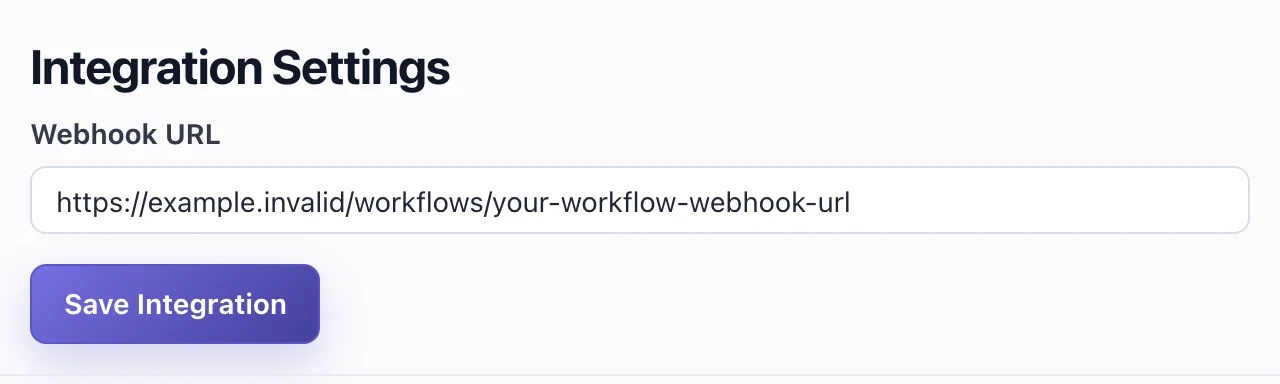
- Paste the URL into the Webhook URL field and click Save Integration.
- Hover over the new integration's row and click Test! to post a sample alert for a check named "TEST".
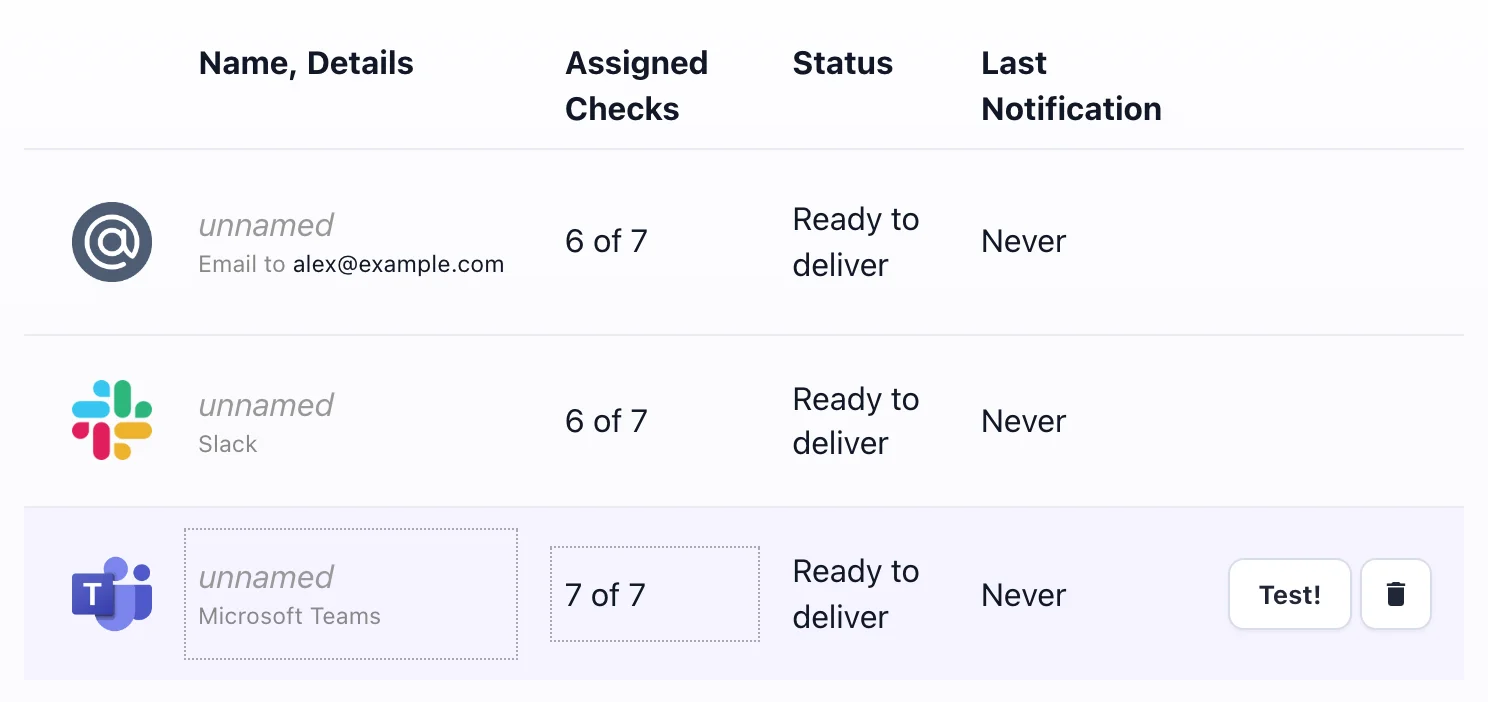
The webhook URL stays in Watchgoose; your servers only hold ping URLs. A new integration is turned on for every check in the project, and you can switch it per check on the Checks page. For separate channels, add one integration per workflow. Email, Slack, PagerDuty and the rest of the 12+ alert channels work the same way; see configuring notifications.
What the Teams alert contains
Each alert is one Adaptive Card (version 1.2), posted by the Flow bot, with:
- a heading such as 🔴 “nightly-backup” is DOWN (received a failure signal), or (success signal did not arrive on time, grace time passed); a recovery reads 🟢 “nightly-backup” is UP
- the check's description, project name and tags, if set
- the schedule and time zone, or the period for simple checks
- the total number of pings and the last ping, such as "Exit status 3, 10 minutes ago"
- the last ping's request body, up to 1,000 characters, in a code block (Microsoft documents this element for the web and desktop clients)
- a View in Watchgoose button that opens the check; the card doesn't contain the ping URL
Watchgoose posts once per status change, not for every failed run while a check stays down, and a new check's first success doesn't post. For repeated reminders, use the hourly or daily email reminders.
When Teams rejects an alert
Watchgoose counts HTTP 200, 201, 202 and 204 as delivered. Any other answer, such as 400, 404, 429 or 500, or a redirect (not followed for Teams) is a failure. Watchgoose tries up to three times, with a 30-second timeout each, then shows Failed on the integration's row, with the reason, such as "Received status code 404", in a tooltip. The integration stays active, and the next status change tries again.
A workflow answers 202 before it posts, so Watchgoose shows Delivered even if the flow fails later; if a Test! alert never appears, check the workflow's run history. If the workflow gets a new URL, remove the integration and add it again with the new URL.
Ping from the cron job
The shortest version pings only on success:
30 2 * * * /usr/local/bin/backup.sh && curl -fsS -m 10 --retry 5 -o /dev/null https://watchgoose.com/ping/your-uuid-here
To get failure alerts right away, send the exit status (0 is success, 1 to 255 is failure):
30 2 * * * /usr/local/bin/backup.sh; curl -fsS -m 10 --retry 5 -o /dev/null https://watchgoose.com/ping/your-uuid-here/$?
A small script can also send a start ping and the last lines of output. Save it as /usr/local/bin/backup-with-ping.sh and run chmod +x /usr/local/bin/backup-with-ping.sh:
#!/usr/bin/env bash
# Run the backup and report start, result and the last output lines to Watchgoose.
url="${WATCHGOOSE_CHECK_URL:-}"   # if unset, curl reports an error and the backup still runs

curl -fsS -m 10 --retry 5 -o /dev/null "$url/start"

out=$(/usr/local/bin/backup.sh 2>&1)
status=$?
printf '%s\n' "$out"

printf '%s\n' "$out" | tail -n 20 |
  curl -fsS -m 10 --retry 5 -o /dev/null --data-binary @- "$url/$status"

exit "$status"
WATCHGOOSE_CHECK_URL=https://watchgoose.com/ping/your-uuid-here
30 2 * * * /usr/local/bin/backup-with-ping.sh
The /start ping lets Watchgoose measure run time and catch a run that starts but never finishes within the grace time. The final ping goes to /<exit status>, so a failed run alerts right away with the last 20 lines of output in the Teams card. Every curl call has a timeout and retries, and there is no set -e, so a network problem or a missing URL never changes the job's result. See attaching logs for body limits.
Run the job once by hand, or wait for its first scheduled run, and confirm the check's status changes from New to Up. A new check doesn't alert about missed runs until its first success ping arrives. A /start ping is the exception: it starts the run-time timer right away, even on a new check, so a first run that starts and hangs still raises an alert.
More detail is in monitoring cron jobs, signaling failures, measuring script run time and the bash examples. For Slack, see Slack alerts for cron jobs. The Free plan includes 10 checks with no credit card required.
Frequently asked questions
How do I send a Microsoft Teams message when a cron job fails?
In Teams, open the channel's Workflows menu and create a workflow from the "Send webhook alerts to a channel" template, then copy its URL. Run the job through a wrapper script that checks the exit status and, when it is not zero, posts an Adaptive Card to that URL with curl or Python. Build the JSON with jq or json.dumps so the job's output can't break it.
Do Microsoft Teams incoming webhooks still work?
No. Incoming webhooks created with the Office 365 Connectors feature stopped working when Microsoft retired connectors in Teams. Its final schedule disabled them between 18 and 22 May 2026. The replacement is a webhook created with the Teams Workflows app, which runs on Power Automate and gives you a new URL. Scripts that used the old URL need the new URL and an Adaptive Card or MessageCard payload.
What JSON does a Teams Workflows webhook expect?
Send a JSON object with "type" set to "message" and an "attachments" array. Each attachment has "contentType" set to "application/vnd.microsoft.card.adaptive", "contentUrl" set to null, and the Adaptive Card in "content". The card needs "type": "AdaptiveCard", a version such as 1.2 and a "body" array of elements like TextBlock and FactSet. Keep the whole message under about 28 KB.
Why does my Teams workflow webhook return 202 but no message appears?
HTTP 202 means the workflow received the request and started a run. The card is posted by a later step, and if that step fails, the sender never hears about it. Open the workflow in the Teams Workflows app and check its run history. Common causes are a payload that isn't an Adaptive Card wrapped in an attachments array, a turned-off flow or a channel the flow can't post to.
Can Microsoft Teams tell me when a cron job did not run?
Not by itself. Teams only shows messages that something sends to it, and a job that never started sends nothing. To get an alert for a missed run, the job pings a heartbeat monitor after each run. The monitor knows the schedule and posts to Teams when the expected ping is late by more than the grace time, even if the server is off.
Conclusion
Teams alerts from cron now go through a Workflows webhook and an Adaptive Card. A wrapper script covers failed runs if it builds the JSON safely and alerts only on state changes. It can't report a run that never started, so pair it with a heartbeat monitor that posts to Teams when a ping is late.
How we tested
We could not test against real Microsoft Teams. Every request went to a local Python HTTP listener in place of the Workflows endpoint, answering 202, or 400, 404 or 500 on request. On macOS 26.5 we ran the bash wrapper with bash 5.3.20 and 3.2.57 (jq 1.7.1, curl 8.7.1) and the Python wrapper with Python 3.14.10 and 3.9.6. Under real cron on Debian 13.7 (Docker image python:3.14-slim, bash 5.2.37, jq 1.7, curl 8.14.1, Python 3.14.10, cron 3.0pl1-197) we ran both wrappers every minute against a job that failed three times and then succeeded, a 70-second job scheduled every minute, the flock variant (util-linux 2.41.5) and the Watchgoose ping script. Failure tests: missing, malformed or unreachable URL, broken or unreadable env file, HTTP 400, 404 and 500, a state directory that can't be created, a missing or non-executable command, SIGTERM and 3,000 lines of output. We rendered the Watchgoose Teams card from the Watchgoose code on a local database copy, and checked Microsoft's dates and limits on 29 October 2026.
References
- Microsoft 365 Developer Blog: Retirement of Office 365 connectors within Microsoft Teams (updates up to 14 April 2026)
- Microsoft Learn: Create Incoming Webhooks (updated 28 October 2026)
- Microsoft Support: Send messages in Teams using incoming webhooks
- Microsoft Learn: Microsoft Teams connector reference (webhook trigger, request body, throttling, known issues)
- Microsoft Learn: Changes to HTTP or Teams Webhook trigger flows
- Microsoft Learn: Cards reference and Format cards in Teams
- Adaptive Cards JSON schema
- curl manual: --retry
- GNU coreutils: timeout invocation and util-linux: flock(1)
- jq manual