
Node-cron: How to Schedule Cron Jobs in Node.js
node-cron is a Node.js package that runs a function on a cron schedule inside your running application. Install it with npm install node-cron, then call cron.schedule('*/5 * * * *', task) to run task every five minutes. It has no dependencies, needs Node.js 20 or newer for version 4, and had 4.5 million npm downloads in the week of 20 to 26 October 2026.
This guide is published by Watchgoose, a monitor for cron jobs and other scheduled work. Every code sample was run with node-cron 4.6.0 on Node.js 26 on 28 October 2026.
Table of contents
- Install node-cron
- Schedule your first job
- node-cron syntax
- Common node-cron schedules
- Set the time zone
- Prevent overlapping runs
- Handle errors
- Start, stop and inspect tasks
- Running node-cron in production
- Upgrading from node-cron v3
- node-cron vs cron, croner, node-schedule and job queues
- Monitor node-cron jobs
- Frequently asked questions
- Conclusion
Install node-cron
In your project folder:
npm install node-cron
Version 4 requires Node.js 20 or newer. Check yours with node --version. The package ships both ES module and CommonJS builds with TypeScript types, so either import style works:
// ES modules
import cron from 'node-cron';

// CommonJS
const cron = require('node-cron');
Schedule your first job
cron.schedule() takes a cron expression, a function and an optional options object. The task starts as soon as you create it:
import cron from 'node-cron';

cron.schedule('*/5 * * * *', () => {
  console.log('Running every five minutes:', new Date().toISOString());
});
Run the file with node scheduler.js. The schedule only exists while that process is running. If the process exits, crashes or is restarted during a deploy, nothing runs until it starts again, and the runs it missed are not replayed.
The function can be async. node-cron waits for the returned promise when it records the run's result and when it applies overlap prevention, described below.
node-cron syntax
node-cron uses standard cron syntax with an optional seconds field at the start:
┌──────────── second (optional, 0-59)
│ ┌────────── minute (0-59)
│ │ ┌──────── hour (0-23)
│ │ │ ┌────── day of month (1-31)
│ │ │ │ ┌──── month (1-12 or names)
│ │ │ │ │ ┌── day of week (0-7 or names, 0 and 7 are Sunday)
│ │ │ │ │ │
* * * * * *
With five fields, node-cron reads them as minute, hour, day of month, month and day of week, exactly like a crontab. With six, the first field is seconds. */10 * * * * * runs every ten seconds; */10 * * * * runs every ten minutes.
It supports *, lists (1,15), ranges (1-5), steps (*/2) and month and weekday names. Version 4 also accepts L (last day of the month), W (nearest weekday) and # (nth weekday, as in 2#3 for the third Tuesday). These are borrowed from Quartz, but node-cron isn't Quartz: Monday is 1, as in crontab, and when both day fields are set, a run has to match both.
That last rule differs from crontab. In a crontab, 0 9 1 * 1 runs on the 1st of the month and on every Monday. In node-cron it runs only when the 1st falls on a Monday.
Check an expression before you schedule it:
cron.validate('*/5 * * * *');   // true
cron.validate('60 * * * *');    // false

cron.validateDetailed('60 * * * *').errors;
// [{ field: 'minute', value: '60', message: '60 is a invalid expression for minute' }]
To see the next run times in a browser, paste a five-field expression into our cron expression tester. It follows crontab rules, so for expressions that use W or set both day fields its results differ from node-cron's; copying a node-cron schedule explains the differences.
Common node-cron schedules
Scroll horizontally to see all columns.
| Schedule | Expression |
|---|---|
| Every 10 seconds | */10 * * * * * |
| Every minute | * * * * * |
| Every 5 minutes | */5 * * * * |
| Every 15 minutes | */15 * * * * |
| Every hour, on the hour | 0 * * * * |
| Every day at 2:30 | 30 2 * * * |
| Weekdays at 9:00 | 0 9 * * 1-5 |
| Every Monday at 6:00 | 0 6 * * mon |
| First day of every month at midnight | 0 0 1 * * |
| Last day of every month at 23:00 | 0 23 L * * |
For a closer look at the five-minute schedule, including the same expression in other schedulers, see how to run a cron job every 5 minutes.
Set the time zone
By default, node-cron uses the time zone of the machine or container the process runs in. Many containers and cloud hosts run in UTC, so 0 9 * * * may fire at 9:00 UTC, not 9:00 where your users are. Set the zone explicitly with an IANA name:
cron.schedule('0 9 * * 1-5', sendDailyDigest, {
  name: 'daily-digest',
  timezone: 'Europe/London',
});
Daylight saving time can affect short intervals. According to the node-cron documentation, when the clocks go back, the repeated hour runs once, so a schedule such as */15 can pause for up to an hour during that night. If a fixed interval must keep running across the change, use timezone: 'UTC'.
Prevent overlapping runs
node-cron starts each run on schedule, even if the previous one hasn't finished. For a job that sometimes takes longer than its interval, set noOverlap: true. A run that would start while the previous one is still working is skipped instead:
const task = cron.schedule('*/5 * * * *', async () => {
  await syncInvoices();
}, { name: 'invoice-sync', noOverlap: true });

task.on('execution:overlap', () => {
  console.warn('invoice-sync skipped: previous run still active');
});
In our test, a job that took 2.5 seconds on a one-second schedule ran 3 times in 8 seconds, and node-cron skipped 6 runs and logged a warning for each.
noOverlap only works inside one process. If you run the same code in two containers, each container runs the job. node-cron's distributed: true option lets only one instance run each scheduled time. The task needs a name, and by default you choose the instance yourself: set the environment variable NODE_CRON_RUN=true on exactly one instance and false on the others. For failover, the project documents a Redis coordinator.
Handle errors
If the function throws or its promise rejects, node-cron catches the error, logs it and keeps the schedule running. The process doesn't crash. You can react to failures with the execution:failed event:
task.on('execution:failed', (ctx) => {
  console.error(`${task.name} failed:`, ctx.execution?.error);
});
task.lastRun() returns the date and either the result or the error of the most recent run.
This is convenient, but it means a failing job can fail every five minutes for weeks with nothing more than a log line. Send failures somewhere a person will see them. Monitoring covers this, along with the case events can't catch: the process itself not running.
Start, stop and inspect tasks
Every task has the same methods:
const task = cron.schedule('0 3 * * *', runBackup, { name: 'nightly-backup' });

task.stop();          // pause
task.start();         // resume
task.execute();       // run now, outside the schedule; returns a promise
task.getStatus();     // 'idle', 'running', 'stopped' or 'destroyed'
task.getNextRun();    // next scheduled Date, or null
task.destroy();       // remove it permanently
To create a task without starting it, use cron.createTask() with the same arguments, then call task.start() when you're ready.
To change a schedule while the app is running, destroy the old task and schedule a new one. If you only create the new one, both run.
Stop the scheduler cleanly when the process receives a shutdown signal, so a deploy doesn't kill a job halfway through without warning:
process.on('SIGTERM', async () => {
  await cron.shutdown(10_000);   // stop all tasks, wait up to 10 s for running jobs
  process.exit(0);
});
Running node-cron in production
node-cron is an in-process scheduler. That makes it simple, and it also decides where it fits:
- The process must stay up. Run it under a process manager such as systemd or PM2, or as a long-running container. Restarts and deploys create gaps where nothing runs.
- Missed runs are skipped. node-cron doesn't replay runs that were due while the process was down. Inside a running process, it emits an
execution:missedevent when a run couldn't start on time, for example because the event loop was blocked. - Each copy of the app runs every job. Scaling a web app to three instances runs each job three times, unless you use
distributed: trueor run scheduled jobs in a separate single process. - Serverless platforms don't fit. A function that only runs while handling a request can't keep a timer. Use the platform's own scheduler instead, such as a Kubernetes CronJob, AWS EventBridge Scheduler or GitHub Actions.
- Long or important jobs need a queue. node-cron keeps no state on disk. If a job must survive a crash or retry later, use a job queue (see the table below) and use node-cron, or the queue's own scheduler, only to add jobs to it.
Upgrading from node-cron v3
Version 4 is a TypeScript rewrite. Both import styles still work, but some options and methods changed:
Scroll horizontally to see all columns.
| node-cron v3 | node-cron v4 |
|---|---|
{ scheduled: false } | cron.createTask(), then task.start() |
{ runOnInit: true } | Call task.execute() after scheduling |
{ recoverMissedExecutions: true } | Removed; listen for execution:missed |
task.now() | task.execute(), which returns a promise |
task-done event | execution:finished and execution:failed |
| Node.js 6 or newer | Node.js 20 or newer |
cron.getTasks() now returns a map keyed by task ID instead of name, and tasks no longer extend EventEmitter, though on, once and off still work. The official migration guide lists every change.
node-cron vs cron, croner, node-schedule and job queues
Several packages schedule work in Node.js. Weekly downloads are from npm for 20 to 26 October 2026. They include installs pulled in by other packages, so they show how widely a package is installed, not how many people chose it directly.
Scroll horizontally to see all columns.
| Package | Weekly downloads | Type | Good fit |
|---|---|---|---|
| croner | 9.2 million | In-process cron, no dependencies | Node.js, Deno, Bun and browsers |
| bullmq | 8.8 million | Job queue on Redis | Jobs that need retries, persistence or several workers |
| cron | 6.6 million | In-process cron | Apps that prefer a CronJob class |
| node-cron | 4.5 million | In-process cron, no dependencies | Simple schedules with overlap control |
| node-schedule | 3.1 million | In-process cron and date-based jobs | One-off jobs at a specific date |
| agenda | 149,000 | Job queue on MongoDB | Persistent jobs in a MongoDB app |
For a handful of schedules inside one long-running app, any of the in-process packages works, and node-cron's built-in overlap prevention and task inspection are a good reason to pick it. Once jobs need to survive restarts, retry after failures or run on several workers, use a queue.
Monitor node-cron jobs
node-cron's events tell you when a job throws. They can't tell you when the job never ran, because the process crashed, a deploy left the scheduler stopped, or every instance was scaled to zero. In all of those cases there is no code left running to report the problem.
Heartbeat monitoring covers both. The job sends a short HTTP request after each successful run, and a service outside your app expects that request on schedule. In Watchgoose, create a check with a matching schedule and the same time zone as the task (see copying a node-cron schedule below), copy its ping URL, and add a small helper:
import cron from 'node-cron';

// The check's ping URL, for example https://watchgoose.com/ping/your-uuid-here
const checkUrl = process.env.WATCHGOOSE_CHECK_URL;

async function ping(suffix = '') {
  if (!checkUrl) return;
  try {
    const res = await fetch(checkUrl + suffix, { signal: AbortSignal.timeout(10_000) });
    if (!res.ok) console.error(`Ping failed: HTTP ${res.status}`);
  } catch (err) {
    // A failed ping must not break the job itself.
    console.error('Ping failed:', err.message);
  }
}

const task = cron.schedule('0 6 * * *', async () => {
  await ping('/start');
  try {
    await buildDailyReport();
    await ping();            // success
  } catch (err) {
    console.error(err);
    await ping('/fail');     // alert straight away
  }
}, { name: 'daily-report', timezone: 'Europe/London', noOverlap: true });
The success ping goes last, after the work is done. The /fail ping marks the check as failed immediately instead of waiting. The /start ping lets Watchgoose measure how long each run takes and alert you if a run starts but doesn't finish within the grace time.
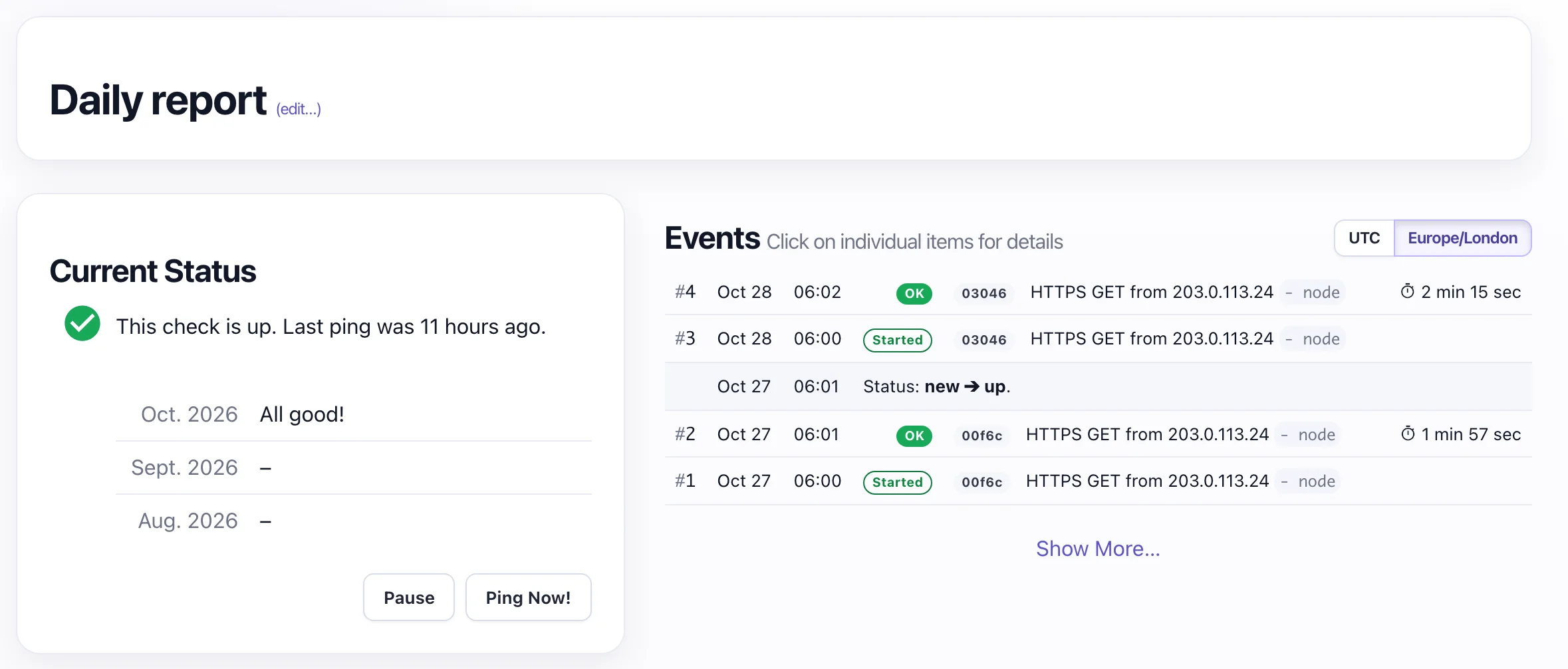
Check that the first run reports in. A new check doesn't expect anything until its first success ping arrives: until then it stays in the new state and won't alert you if nothing happens. Run the job once with task.execute(), or wait for its first scheduled run, and confirm the check's status changes from New to Up. From then on, if a success ping doesn't arrive on schedule, Watchgoose waits for the grace time and alerts you by email, Slack, Microsoft Teams, webhook or another of its 12+ alert channels. A /start ping works independently of this: it starts the run-time timer straight away, even on a new check, so a first run that starts and hangs still alerts you.
Node.js 20 and newer include fetch, so the helper needs no extra packages. Await each ping in order: if you fire them without waiting, the success ping can arrive before the start ping. Our JavaScript docs show the same pattern with other HTTP clients, and the check settings docs explain schedules and grace time.
Copying a node-cron schedule to Watchgoose
Watchgoose cron checks use five fields and the same rules as crontab, so most node-cron schedules copy across unchanged, including L and #. Three kinds don't:
- Seconds. Watchgoose doesn't accept a six-field expression. For a job that runs every few seconds, use a simple period check instead. The shortest period is 60 seconds, so a one-minute period still tells you when the pings stop.
W(nearest weekday). Watchgoose rejects expressions such as0 9 15W * *. Use a simple period with a grace time that covers the weekend shift.- Both day fields set. node-cron runs only when the day of month and the day of week both match; Watchgoose, like crontab, runs when either matches. From 28 October 2026, node-cron's next run for
0 9 1 * 1is 1 February 2027, while Watchgoose expects 1 November 2026. Give the check a schedule that matches the real runs, or use a simple period.
The Free plan includes 10 checks with no credit card required.
Frequently asked questions
How do I use node-cron in Node.js?
Install it with npm install node-cron, import it, and call cron.schedule() with a cron expression and a function. For example, cron.schedule('*/5 * * * *', task) runs task every five minutes. The schedule runs as long as the Node.js process is running.
Does node-cron support seconds?
Yes. Add a sixth field at the start for seconds. A five-field expression such as */10 * * * * runs every ten minutes, and the six-field */10 * * * * * runs every ten seconds.
How do I stop node-cron jobs from overlapping?
Pass noOverlap: true in the options. If a run is still working when the next one is due, node-cron skips the new run and emits an execution:overlap event. This only works within one process, so for several instances use distributed: true or a single scheduler process.
Does node-cron run missed jobs after a restart?
No. node-cron keeps its schedule in memory, so runs that were due while the process was stopped are skipped. Version 4 removed the recoverMissedExecutions option. Use external monitoring to find out when a run didn't happen.
What is the difference between node-cron and cron?
Both run cron schedules inside a Node.js process. node-cron uses a cron.schedule() function and has built-in overlap prevention and task inspection. The cron package uses a CronJob class. Neither stores jobs on disk, so use a job queue such as BullMQ when jobs must survive restarts.
Conclusion
node-cron is a good fit for recurring jobs inside one long-running Node.js process: install it, set an explicit time zone, turn on noOverlap for anything slow, and handle errors. Because the schedule lives in memory, the failure to plan for is the process not running at all, and that needs a check from outside the app.