
How to Schedule Tasks in Python: Cron, schedule, APScheduler and Celery Beat
To schedule a Python task, the simplest reliable option for most jobs is to let the operating system start your script: cron on Linux and macOS, a systemd timer on modern Linux servers, or Task Scheduler on Windows. Use an in-process library such as schedule or APScheduler only when your Python program already runs all the time, like a web app or a worker. Whatever you pick, call the virtual environment's Python by its absolute path, send the output to a log file, and add a check that tells you when a run didn't happen.
This guide is published by Watchgoose, a monitor for cron jobs and other scheduled work. We ran the Python samples, the crontab line and the systemd units on 28 and 29 October 2026. How we tested lists the versions.
Table of contents
- Which way to schedule Python tasks?
- Run a Python script with cron
- Run it with a systemd timer
- Run it with Windows Task Scheduler
- The schedule library
- APScheduler
- Celery beat
- A plain loop with time.sleep
- Common pitfalls
- Monitor scheduled Python tasks
- Frequently asked questions
- Conclusion
Which way to schedule Python tasks?
Ask one question first: does a Python process already run all day? If not, use an OS scheduler. It starts a fresh process for each run, so a crash or memory leak in one run doesn't affect the next. If your app is already long-running, a library inside it can share its code, settings and database connections.
Scroll horizontally to see all columns.
| Option | What starts the job | Needs your app running | Overlap control | Good for |
|---|---|---|---|---|
| cron | The cron daemon starts a new Python process | No | None built in, wrap it with flock | Standalone scripts on Linux and macOS |
| systemd timer | systemd starts a service unit | No | Never starts a second copy of a running service | Linux servers, with logs in the journal and catch-up after downtime |
| Windows Task Scheduler | Windows starts a process | No | Default: no new instance while one is running | Scripts on Windows machines |
schedule library | A loop in your own process | Yes | Jobs run one after another in the loop | Small scripts that already run all day |
| APScheduler 3.x | A scheduler thread inside your app | Yes | max_instances, default 1 | Long-running apps that need cron-style triggers |
| Celery beat | A beat process sends tasks to Celery workers through a broker | Beat, a worker and the broker must run | None per task by default | Apps that already use Celery |
while loop with time.sleep | Your own loop | Yes | Runs in sequence | Tiny pollers and prototypes |
Latest PyPI releases and one week of downloads (pypistats.org, without mirrors). croniter is included for comparison: it parses cron expressions for other tools and doesn't run jobs itself.
Scroll horizontally to see all columns.
| Package | Latest version (28 October 2026) | Downloads, 21 to 27 October 2026 |
|---|---|---|
| celery | 5.6.3 | 11.9 million |
| APScheduler | 3.11.3 | 9.9 million |
| schedule | 1.2.2 | 1.6 million |
| croniter | 6.2.4 | 21.6 million |
Run a Python script with cron
A crontab line has five time fields (minute, hour, day of month, month, day of week) and a command. Run crontab -e and add a line like this for a report at 02:30 every day:
30 2 * * * /usr/bin/flock -n /tmp/report.lock /home/app/report/.venv/bin/python /home/app/report/report.py >> /home/app/report/logs/report.log 2>&1
/home/app/report/.venv/bin/pythonis the virtual environment's interpreter. Calling it directly uses that environment's packages, with no need to activate it first.- Every path is absolute, because cron starts the job in your home directory with a very short
PATH. flock -ntakes a lock first. If the previous run is still going, the new run exits at once. In our test, a 65-second job started every minute skipped the overlapping run and started again on time.flockcomes with util-linux on Linux; macOS doesn't include it.>> ... 2>&1appends both normal output and errors to a log file. Without it, cron tries to email the output, and on a server with no mail set up, the output is lost.
Inside the script, build file paths from the script's own location so they don't depend on the current directory:
from pathlib import Path

BASE_DIR = Path(__file__).resolve().parent
output_file = BASE_DIR / "data" / "report.csv"
Cron uses the server's time zone. For more schedules, see our crontab syntax examples, or paste an expression into the cron expression tester to see its next run times.
Run it with a systemd timer
On Linux servers with systemd, a timer is a good alternative to cron. The service file says what to run:
# /etc/systemd/system/report.service
[Unit]
Description=Build the daily report

[Service]
Type=oneshot
User=app
WorkingDirectory=/home/app/report
ExecStart=/home/app/report/.venv/bin/python /home/app/report/report.py
The timer says when:
# /etc/systemd/system/report.timer
[Unit]
Description=Run the daily report at 02:30 London time

[Timer]
OnCalendar=*-*-* 02:30:00 Europe/London
Persistent=true

[Install]
WantedBy=timers.target
Enable it with sudo systemctl daemon-reload and sudo systemctl enable --now report.timer. Output goes to the journal (journalctl -u report.service). OnCalendar accepts a time zone at the end, and Persistent=true runs the job once at boot if the machine was off at 02:30. If the service is still running when the timer fires again, systemd leaves it running and doesn't start a second copy. Our systemd timer vs cron guide compares the two in more detail.
Run it with Windows Task Scheduler
Create the task from a Command Prompt with schtasks. A Windows virtual environment keeps its interpreter in Scripts\python.exe:
schtasks /create /tn "Daily report" /sc daily /st 02:30 /tr "C:\apps\report\.venv\Scripts\python.exe C:\apps\report\report.py"
/sc daily with /st 02:30 runs the task every day at 02:30 local time, /tn names it, and /tr is the command, at most 262 characters. schtasks doesn't check that the program path exists, so a typo creates a task that never works. Keep the folders free of spaces to avoid nested quotes, and test the task with schtasks /run /tn "Daily report". schtasks /create has no option for the working folder, so build paths from __file__ inside the script.
By default, Task Scheduler doesn't start a new instance while the previous one is still running. If the computer is off at the scheduled time, the run is skipped unless the task's StartWhenAvailable setting is on (it is off by default).
The schedule library
The schedule package reads like English and has no dependencies. Install it with python -m pip install schedule, plus pytz if you use time zones:
import logging
import time

import schedule

logging.basicConfig(level=logging.INFO)


def build_report():
    logging.info("Building the daily report")


def safe(job):
    def wrapper():
        try:
            job()
        except Exception:
            logging.exception("%s failed", job.__name__)
    return wrapper


schedule.every().day.at("02:30", "Europe/London").do(safe(build_report))
schedule.every(10).minutes.do(safe(build_report))

while True:
    schedule.run_pending()
    time.sleep(1)
schedule doesn't catch exceptions. Without the safe() wrapper, an error in any job escapes from run_pending() and ends the loop, which stops every job. In our test, the first unwrapped RuntimeError did exactly that.
Limits to know:
- The time zone argument only exists on
.at(). Relative schedules such asevery(4).hoursignore daylight saving time changes. - Jobs run one at a time in the loop's thread, so a slow job delays the others.
- Nothing is saved. Runs missed while the process was stopped are not made up.
- Version 1.2.2 came out in May 2024, and the docs list Python 3.7 to 3.11 as tested. It worked in our tests on Python 3.9 and 3.13.
APScheduler
APScheduler has cron, interval and one-off date triggers, time zones, missed-run rules and optional persistent job stores. The stable release is 3.11.3 (June 2026). Version 4.0 is still in alpha (latest 4.0.0a6, April 2025) and changes the API shown here, so pin APScheduler<4 in your requirements.
Use BlockingScheduler when the scheduler is the only thing the process does:
import logging

from apscheduler.schedulers.blocking import BlockingScheduler
from apscheduler.triggers.cron import CronTrigger

logging.basicConfig(level=logging.INFO)


def build_report():
    logging.info("Building the daily report")


scheduler = BlockingScheduler(timezone="Europe/London")
scheduler.add_job(
    build_report,
    CronTrigger(hour=2, minute=30, timezone="Europe/London"),
    id="daily-report",
    misfire_grace_time=600,  # still run if up to 10 minutes late
    coalesce=True,           # several missed runs become one
    max_instances=1,         # never two copies at once
)

try:
    scheduler.start()
except (KeyboardInterrupt, SystemExit):
    pass
Inside an app that does other work, use BackgroundScheduler. Its start() returns at once and jobs run in a thread pool:
import atexit

from apscheduler.schedulers.background import BackgroundScheduler
from apscheduler.triggers.cron import CronTrigger


def clean_temp_files():
    print("Cleaning temporary files")


scheduler = BackgroundScheduler(timezone="UTC")
scheduler.add_job(
    clean_temp_files,
    CronTrigger(day_of_week="mon-fri", hour=9, minute=0, timezone="UTC"),
    id="clean-temp-files",
    replace_existing=True,
)
scheduler.start()
atexit.register(scheduler.shutdown)

# ... the rest of your application keeps running here
Three job options control what happens when things go wrong:
misfire_grace_timeis how many seconds late a run may start. The default is 1 second, so a delayed run is skipped with a "Run time of job ... was missed by" warning. Raise it for daily jobs.coalesce(defaultTrue) turns several missed runs into one. In our test, a 1-second job held back for 4 seconds ran once withcoalesce=Trueand four times withcoalesce=False.max_instances(default 1) stops overlap. A 5-second job due every 2 seconds logged "skipped: maximum number of running instances reached (1)" instead of starting twice.
Pass timezone= to every CronTrigger you create. A trigger object doesn't inherit the scheduler's time zone: in our test, CronTrigger(hour=2, minute=30) on a scheduler set to Europe/London used the machine's local zone instead. (The string form, add_job(job, "cron", hour=2, minute=30), does inherit it.) Also avoid numeric weekdays with CronTrigger.from_crontab(): in version 3, 0 means Monday, so from_crontab("0 9 * * 1") fired on Tuesdays in our test. Use names like day_of_week="mon".
APScheduler has no locking between processes: if four web server workers each start a scheduler, every job runs four times. The FAQ recommends one dedicated scheduler process.
Celery beat
If your app already uses Celery, beat is the natural scheduler. It sends tasks to the broker on schedule, and your Celery workers run them:
# tasks.py
from celery import Celery
from celery.schedules import crontab

app = Celery("tasks", broker="redis://localhost:6379/0")
app.conf.timezone = "Europe/London"
app.conf.beat_schedule = {
    "daily-report": {
        "task": "tasks.build_report",
        "schedule": crontab(hour=2, minute=30),
    },
}


@app.task
def build_report():
    print("Building the daily report")
Start a worker and beat as two processes:
celery -A tasks worker --loglevel=info
celery -A tasks beat --loglevel=info
Celery schedules use UTC unless you set timezone. Run exactly one beat process, or every task is sent twice. The -B flag runs beat inside a worker, which the docs don't recommend for production. For a single job, Celery is a lot of machinery; it makes sense when you already run workers and a broker.
A plain loop with time.sleep
A loop is fine for a small poller. job(); time.sleep(300) drifts later on every run by the job's run time, so schedule each run from a fixed start and catch errors:
import logging
import time

INTERVAL = 300  # seconds


def poll_queue():
    logging.info("Polling the queue")


next_run = time.monotonic()
while True:
    try:
        poll_queue()
    except Exception:
        logging.exception("poll_queue failed")
    now = time.monotonic()
    while next_run <= now:  # skip any slots a long run has missed
        next_run += INTERVAL
    time.sleep(next_run - now)
In our test with a 2-second interval and a 0.7-second job, runs started at 0, 2, 4, 6 and 8 seconds, and the loop survived an exception in run two. When a run takes longer than the interval, the loop skips the slots it missed and waits for the next one, so the job doesn't run several times back to back. With a 3-second interval and a 9.5-second first run, the second run started at 12 seconds.
The timing lives only in the running process. After a restart the loop starts again from zero and doesn't make up runs missed while it was down. It also has no time zones or calendar rules, so move to cron or APScheduler when you need them.
Common pitfalls
Cron's minimal environment
Cron doesn't read your .bashrc or .profile. On our Debian 13 test server, the whole environment of a cron job was five variables: HOME, LOGNAME, PATH=/usr/bin:/bin, SHELL=/bin/sh and PWD (the home directory). Commands in /usr/local/bin, pyenv shims and your exported variables are missing. Use absolute paths and load settings inside the script.
Relative paths
open("data.csv") looks in the current directory. Under cron that is your home directory, and under Task Scheduler it is not your project folder unless you set a start folder in the task. Build paths from Path(__file__).resolve().parent, or set WorkingDirectory= in a systemd service.
The wrong Python
python3 report.py in a crontab runs the system Python, not your virtual environment. In our test it failed every minute with ModuleNotFoundError: No module named 'schedule', visible only in the log file, while .venv/bin/python worked.
Time zones and daylight saving time
Cron and Task Scheduler use the machine's local time. Debian's cron runs fixed-time jobs from a skipped hour soon after the clock jumps forward, and doesn't repeat them when it goes back. Libraries differ. In Europe/London, 01:30 doesn't exist on 28 March 2027; APScheduler 3.11.3 scheduled that run for 01:30 GMT, which is 02:30 on the clock. The safest choice is to avoid 01:00 to 03:00 or run servers in UTC.
Overlapping runs
If a job sometimes takes longer than its interval, two copies can fight over the same files or rows. Use flock -n with cron, max_instances=1 with APScheduler, and a shared lock (a database advisory lock, for example) when jobs run on several machines.
An exception stops the loop
With schedule and hand-written loops, one uncaught exception ends every future run, so wrap each job as in the samples above. APScheduler and Celery catch and log job exceptions, so the scheduler keeps going, but nobody hears about the failure unless someone reads the logs.
The process isn't running
An in-process scheduler only works while its process is alive. A crash, an out-of-memory kill, a deploy that doesn't restart it or a container scaled to zero stops every job, and nothing is logged because no code is running. Run the scheduler under a process manager such as systemd, and monitor it from outside.
Monitor scheduled Python tasks
Error handling inside your code can report a failed run, but not one that never started. When the cron line has a typo, the server is down or the scheduler process has died, no code is running to send an alert.
Heartbeat monitoring covers this. Each run sends an HTTP request when it finishes, and a service outside your server expects it on schedule. In Watchgoose, create a check with the job's schedule and time zone, copy its ping URL, and add this standard-library helper:
import os
import time
import traceback
import urllib.request
from contextlib import contextmanager


def ping(url, suffix="", body=None, retries=3):
    """Send one ping. Never raises: a failed ping must not break the job."""
    if not url:
        return
    data = body.encode() if body else None
    for attempt in range(retries):
        try:
            urllib.request.urlopen(url + suffix, data=data, timeout=10)
            return
        except OSError as e:
            if attempt == retries - 1:
                print(f"Ping failed: {e}")
            else:
                time.sleep(2 ** attempt)


@contextmanager
def monitored(url):
    ping(url, "/start")
    try:
        yield
    except Exception:
        ping(url, "/fail", body=traceback.format_exc())
        raise
    ping(url)


def build_report():
    print("Building the daily report")


# The check's ping URL, for example https://watchgoose.com/ping/your-uuid-here
REPORT_CHECK_URL = os.environ.get("WATCHGOOSE_CHECK_URL")


def main():
    with monitored(REPORT_CHECK_URL):
        build_report()


if __name__ == "__main__":
    main()
Saved as report.py, this runs the report and pings the check each time cron starts it. In a program that is already running, such as an APScheduler job, monitored also works as a decorator:
@monitored(os.environ.get("WATCHGOOSE_CLEANUP_URL"))
def clean_temp_files():
    print("Cleaning temporary files")
How it works:
/startgoes first, so Watchgoose measures each run's duration and alerts you if a started run doesn't finish within the grace time.- The success ping goes last, only after the work is done.
- On an exception,
/failmarks the check as failed right away and sends the traceback as the request body, which you can read in the check's event log. The exception is raised again, so a cron script still exits with an error. - Each ping has a 10-second timeout and three attempts, and errors are caught, so a ping problem never breaks the job.
Under cron, set the URL at the top of the crontab with a line such as WATCHGOOSE_CHECK_URL=https://watchgoose.com/ping/your-uuid-here.
We tested the helper under cron and on an APScheduler job, with a local test server standing in for Watchgoose. Our Python docs show the same calls with requests, and signaling failures shows how to report a cron job's exit status with curl.
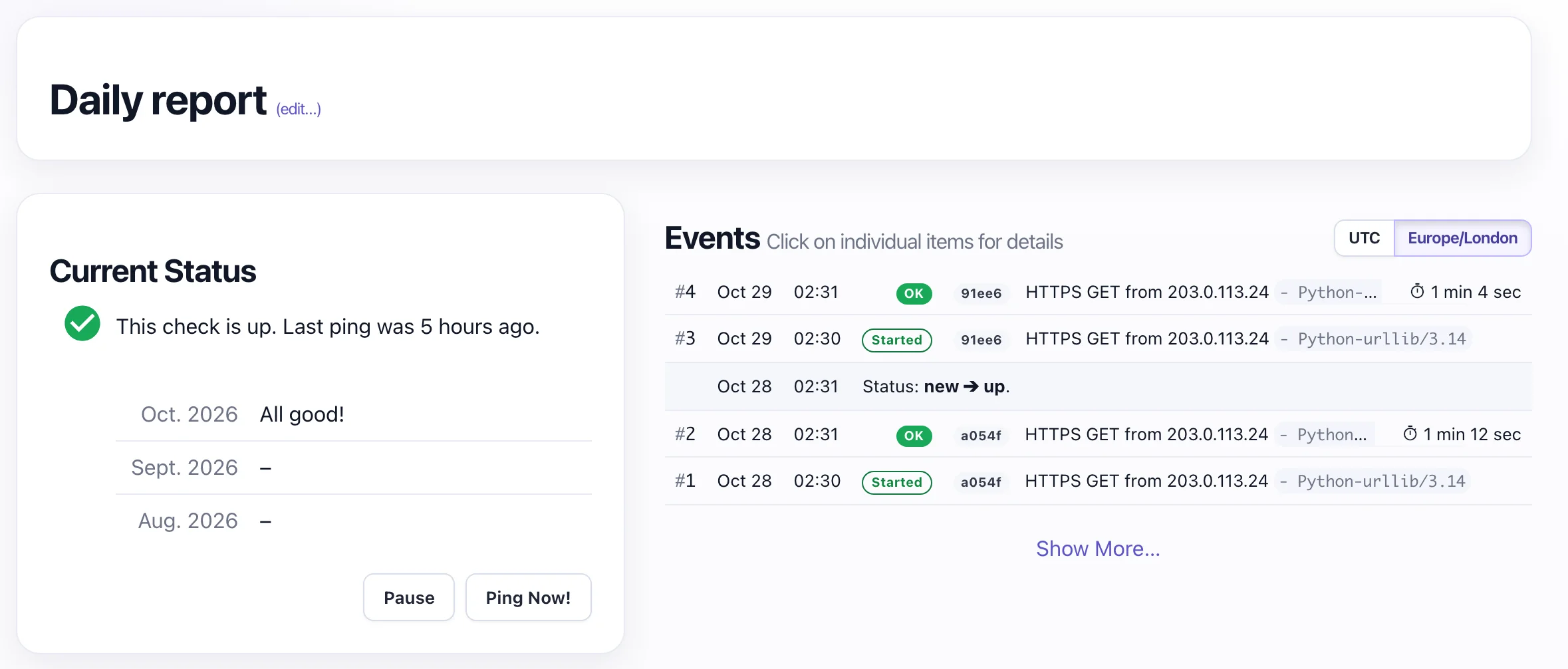
Check that the first run reports in. A new check stays in the New state and doesn't alert until its first success ping. Run the job once by hand (for example /home/app/report/.venv/bin/python /home/app/report/report.py), or wait for its first scheduled run, and confirm the check's status changes from New to Up. After that, if a success ping is late by more than the grace time, Watchgoose alerts you by email, Slack, Microsoft Teams, webhook or another of its 12+ alert channels. A /start ping works independently of this and starts the run-time timer straight away, even on a new check.
Watchgoose checks accept crontab-style cron expressions, systemd OnCalendar expressions, or a simple period of 60 seconds or more. See also monitoring cron jobs, monitoring systemd timers, measuring run time and attaching logs. The Free plan includes 10 checks with no credit card required.
Frequently asked questions
How do I schedule a Python script to run every day?
On Linux or macOS, add a crontab line such as 30 2 * * * /home/app/report/.venv/bin/python /home/app/report/report.py >> /home/app/report/logs/report.log 2>&1. On Windows, use schtasks /create with /sc daily /st 02:30. Use absolute paths to the virtual environment's Python and to the script, and send output to a log file.
Should I use cron or a Python scheduler library?
Use cron, a systemd timer or Task Scheduler when the job can run as its own script, because the operating system starts a fresh process each time and nothing has to stay running. Use schedule or APScheduler when your Python app already runs all day and the job needs its code, configuration or connections.
What is the difference between schedule and APScheduler?
The schedule library is a small, readable loop for simple interval and daily jobs in one process, with no persistence and no exception handling. APScheduler adds cron triggers, time zones, a thread pool, missed-run rules, overlap control with max_instances and optional persistent job stores. Both run only while your Python process is running.
Is APScheduler 4 ready for production?
On 28 October 2026 the stable release was APScheduler 3.11.3, and version 4.0 was still in alpha, with 4.0.0a6 from April 2025 as the latest pre-release. Version 4 changes the API, merging the scheduler classes and replacing add_job() with add_schedule() for recurring jobs. Pin APScheduler<4 until a final 4.0 release is out.
How do I know if a scheduled Python task didn't run?
Logs and exception handlers can't report a run that never started. Have each run send an HTTP request to a heartbeat monitor such as Watchgoose when it finishes. The monitor expects that request on schedule and alerts you if it is late, and a /fail request reports errors right away.
Conclusion
For most Python jobs, let cron, a systemd timer or Task Scheduler start the script, with absolute paths, a log file and a lock against overlap. Use APScheduler or schedule in apps that already run all the time, and Celery beat if you already run Celery. Either way, log job errors and add a heartbeat check for runs that never happen.
How we tested
The Python samples were run on 28 October 2026 with schedule 1.2.2, APScheduler 3.11.3 and Celery 5.6.3 (with Redis 7.4) on Python 3.9.6, and all but the Celery sample again on Python 3.13.5. On 29 October 2026 we ran the sleep loop and the monitoring helper again on Python 3.9.6 and 3.14.10, including a run longer than the interval and a failing job. The crontab line and systemd units were tested on Debian 13 with cron 3.0pl1-197 and systemd 257. The schtasks command follows Microsoft's documentation and was not run.
References
- schedule documentation and schedule on PyPI
- APScheduler 3.x user guide, APScheduler FAQ and APScheduler on PyPI
- APScheduler 4.0 migration notes
- Celery periodic tasks and Celery on PyPI
- croniter on PyPI
- pypistats.org download statistics
- Python venv documentation
- Debian cron(8) manual
- systemd.timer manual
- Microsoft: schtasks create
- Microsoft: MultipleInstancesPolicy and StartWhenAvailable