
Monitor rclone Jobs: Alerts for Failed or Missed Backups
If a nightly rclone copy fails, cron may leave you an error message. If the host is off at 2 a.m., there’s no job output to read. To catch both cases, have the job send its exit status to Watchgoose and tell Watchgoose when to expect it. The example below uses rclone copy; the same wrapper works for sync and bisync.
If you run rclone mount or rclone serve, schedule a read test instead. Those processes are meant to stay running.
Step 1: Create a check for the nightly copy
Create a Watchgoose account, then create a check for your rclone job. Match its schedule and time zone to cron. For a copy that starts at 02:00 UTC every night, use 0 2 * * * and UTC. Set the grace time long enough for the copy and its pings to finish.
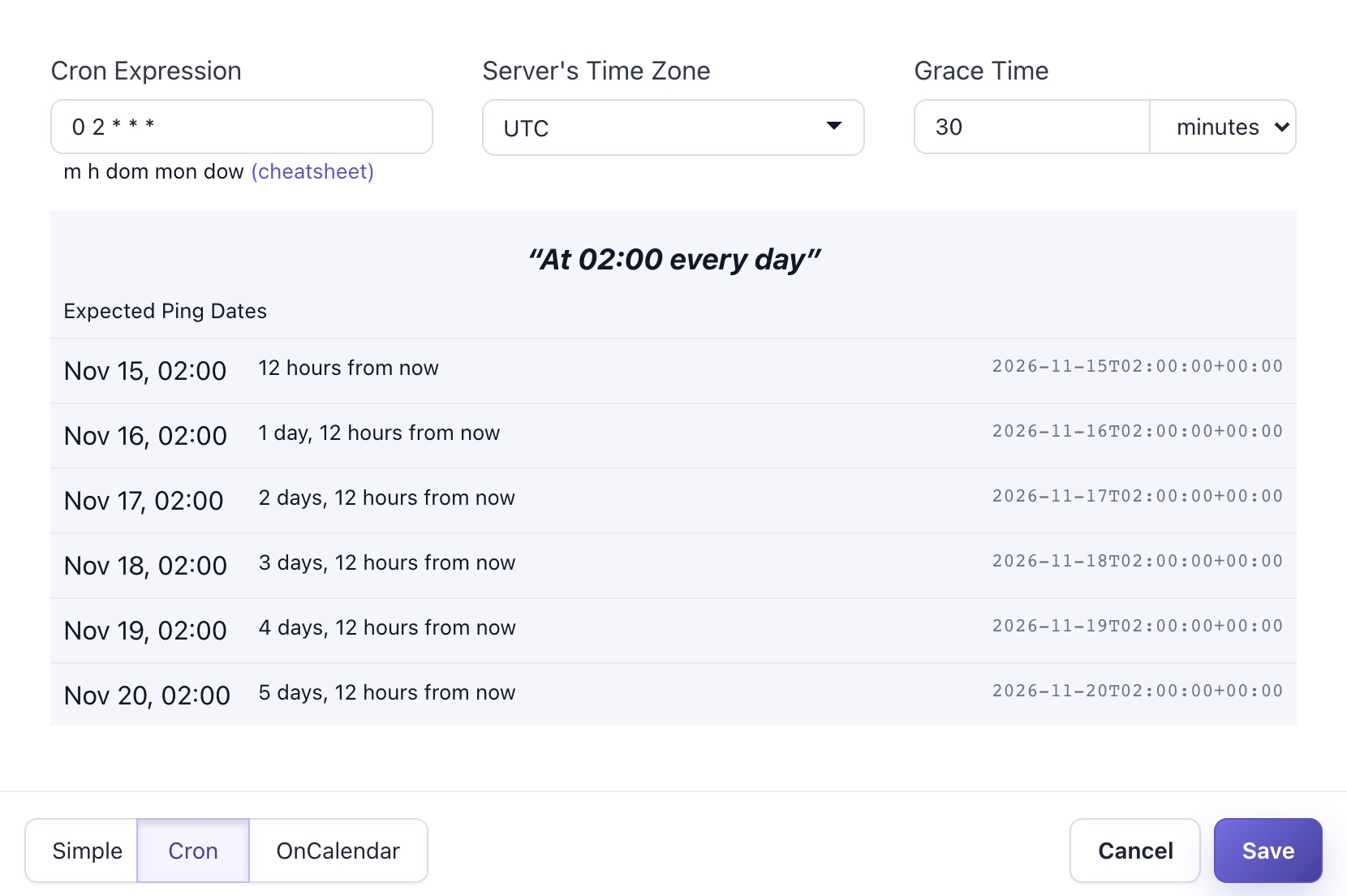
Copy the full ping URL from the check. Keep this URL private: anyone who has it can report a result for the job. As the user who runs the copy, create a private file:
mkdir -p -m 700 "$HOME/.config/watchgoose"
(umask 077; touch "$HOME/.config/watchgoose/nightly-copy.url")
chmod 600 "$HOME/.config/watchgoose/nightly-copy.url"
vi "$HOME/.config/watchgoose/nightly-copy.url"
Paste the URL on the first line. Don’t add a blank line or any other text below it. Save the file. Use a different check and file for each scheduled job. If two jobs use the same URL, one can report success while the other hasn’t run.
Step 2: Install the shared wrapper
Save the script below as /usr/local/bin/watchgoose-run. It needs a POSIX shell, curl, and a system where curl can open /dev/fd/3. The script passes the URL there instead of putting it on the command line. This leaves standard input free for a log. Use the same script for all your jobs.
#!/bin/sh
if [ "$#" -eq 0 ]; then
    printf '%s\n' 'Supply a command to run.' >&2
    exit 64
fi

url=${WATCHGOOSE_URL:-}
if [ -n "${WATCHGOOSE_URL_FILE:-}" ]; then
    url=
    if [ -f "$WATCHGOOSE_URL_FILE" ]; then
        {
            IFS= read -r url || :  # Also accept a file without a final newline.
            if IFS= read -r extra || [ -n "$extra" ]; then url=; fi
        } 2>/dev/null < "$WATCHGOOSE_URL_FILE" || url=
    fi
fi
# Only pass a single, unquoted HTTP(S) URL to curl's config reader.
case $url in
    *'"'*|*'\'*|*[[:space:][:cntrl:]]*) url= ;;
    https://?*|http://?*) ;;
    *) url= ;;
esac
if [ -z "$url" ]; then
    printf '%s\n' 'Missing or invalid Watchgoose URL; running without monitoring.' >&2
    exec "$@"
fi

ping() {
    event=$1
    shift
    if code=$(curl --disable --silent --fail --globoff \
        --connect-timeout 3 --max-time 10 --retry 3 --retry-max-time 20 \
        --output /dev/null --write-out '%{http_code}' --config /dev/fd/3 \
        "$@" 2>/dev/null 3<<EOF
url = "${url%/}/$event"
EOF
    ) && [ "$code" = 200 ]; then
        return 0
    fi
    printf '%s\n' 'Watchgoose ping failed; job status is unchanged.' >&2
}

ping start
"$@"
rc=$?
if [ -n "${WATCHGOOSE_LOG:-}" ] && [ -f "$WATCHGOOSE_LOG" ] && [ -r "$WATCHGOOSE_LOG" ]; then
    tail -c 4096 "$WATCHGOOSE_LOG" | ping "$rc" --data-binary @-
else
    ping "$rc"
fi
exit "$rc"
Make the script executable with chmod +x /usr/local/bin/watchgoose-run. Run it directly, not with sh -e: the wrapper needs to read the command’s exit status even when the command fails.
The first ping starts the timer. The last ping sends /0 for success or the exit code for failure. Watchgoose returns HTTP 200 for a ping. The wrapper warns on other responses and does not follow redirects. If a ping fails, the job still runs and returns its own exit status.
Each ping allows ten seconds per attempt and up to three retries for temporary errors. curl can start a retry within 20 seconds and finish it later. Allow time for both pings when setting a job timeout. If your scheduler already supplies secrets through the environment, it can set WATCHGOOSE_URL instead of using a file. When both are set, only the file is used.
Step 3: Test the job and add it to cron
Run the copy once as the job user. Use your installed rclone path, source, destination and config file:
WATCHGOOSE_URL_FILE="$HOME/.config/watchgoose/nightly-copy.url" \
    /usr/local/bin/watchgoose-run /usr/local/bin/rclone copy \
    /srv/exports archive:nightly --config /etc/rclone/rclone.conf
Open the check’s event history. Look for Started, followed by OK. The first success changes the check from New to Up. Watchgoose can now alert if the next scheduled run doesn’t report success.
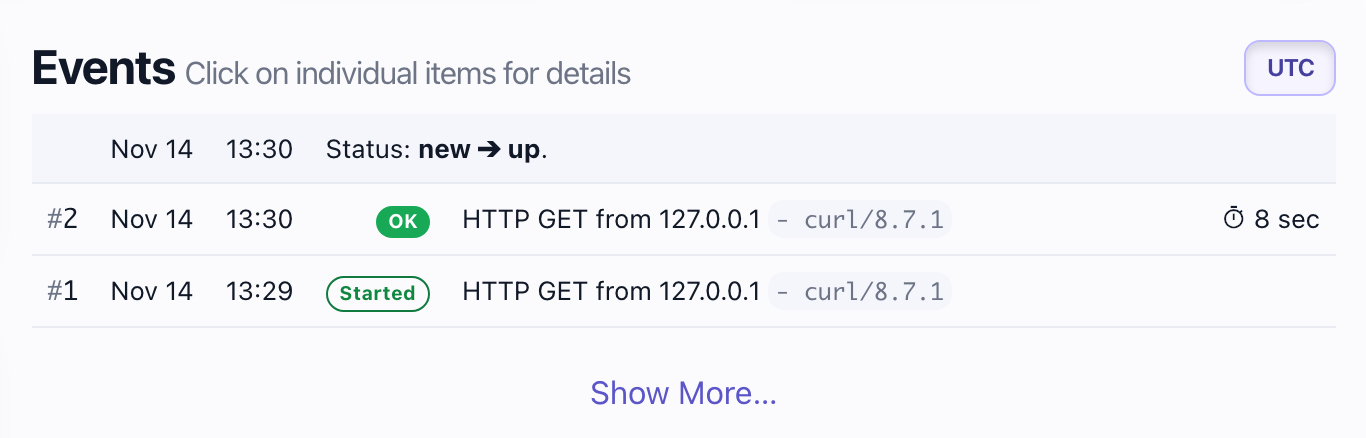
Replace the existing copy entry in the job user’s crontab; don’t add a second copy. This example assumes cron uses UTC:
PATH=/usr/local/bin:/usr/bin:/bin
0 2 * * * WATCHGOOSE_URL_FILE="$HOME/.config/watchgoose/nightly-copy.url" /usr/local/bin/watchgoose-run /usr/local/bin/rclone copy /srv/exports archive:nightly --config /etc/rclone/rclone.conf
Set up a notification channel and check that it’s enabled for the check. Use a separate test check, its own URL file and disposable data to test alerts:
- Run a copy with a source directory that doesn’t exist. Confirm that the check goes Down and you receive the failure alert. A reported failure can take even a new check Down.
- Run a successful copy. Skip the test job’s next scheduled run and wait until its grace time ends. Confirm that you receive a missed-run alert. Run it again and check that it recovers.
For the real job, look for the next run started by cron. A manual run tests the command, not the schedule. The same grace time also limits how long Watchgoose waits after a start ping, even before the first success.
For sync, move or copyto, use your usual rclone command in place of copy. Try it with --dry-run on disposable paths first: sync can delete destination files, and move removes source files after copying them. Don’t send a dry run’s result to the check for the real transfer.
Can I attach the job’s log?
By default the wrapper sends only the status. To attach a log, first check what rclone writes for this job, including on errors. File names, private paths and credentials may be sensitive. If any of that output is unsafe to share, leave logging off or supply a redacted file. The wrapper sends the last 4 KiB as written, on success as well as failure.
For a job whose logs are safe to share, save the following as an executable job script. Run it instead of the wrapped copy in Step 3, with the same WATCHGOOSE_URL_FILE setting. It calls the wrapper itself:
#!/bin/sh
log=$(mktemp "${TMPDIR:-/tmp}/rclone-log.XXXXXXXXXX") || log=
if [ -n "$log" ]; then
    trap 'rm -f "$log"' EXIT
    trap 'exit 1' HUP INT TERM
    set -- --log-file "$log" --log-level INFO
else
    set --
fi
WATCHGOOSE_LOG="$log" \
    /usr/local/bin/watchgoose-run /usr/local/bin/rclone copy \
    /srv/exports archive:nightly --config /etc/rclone/rclone.conf "$@"
Each run uses its own temporary file. The script removes it on normal exit. If it can’t create the file, the copy still runs and the wrapper sends the status without a log.
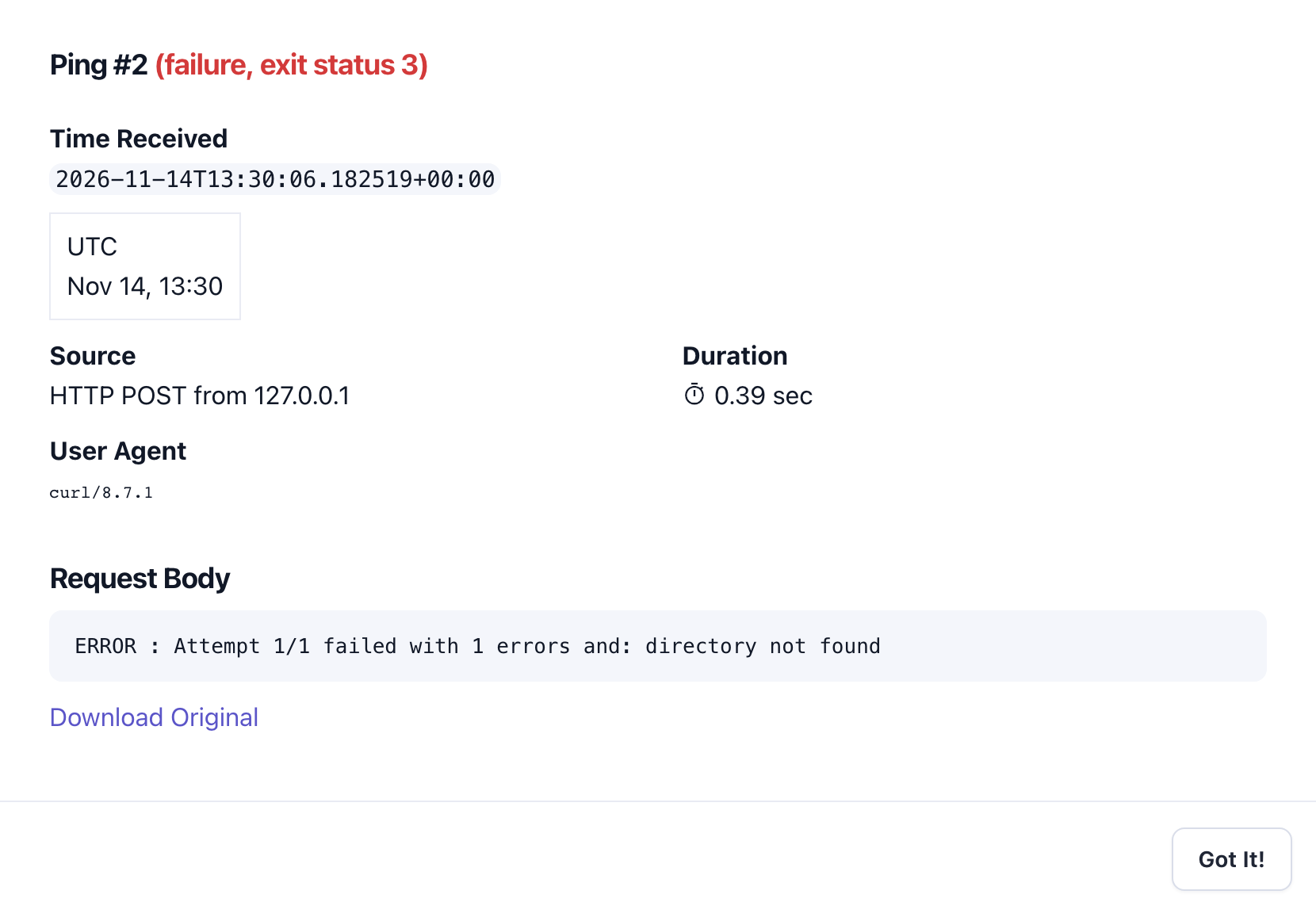
directory not found.How do I prevent overlapping copies?
On Linux, put flock before the nightly copy from Step 3. First create a lock directory that the job user can write to. For each example below, use the URL file for that job.
export WATCHGOOSE_URL_FILE="$HOME/.config/watchgoose/nightly-copy.url"
/usr/bin/flock -n /var/lib/rclone-monitoring/nightly.lock \
    /usr/local/bin/watchgoose-run /usr/local/bin/rclone copy \
    /srv/exports archive:nightly --config /etc/rclone/rclone.conf
Use the same lock wherever you start the job. If a copy is running, a second attempt exits without sending any pings. This lock is for jobs on one host; it won’t stop a copy on another host.
What do rclone’s exit codes mean?
The wrapper reports 0 as success and any other code as failure. These are rclone’s exit codes:
Scroll horizontally to see all columns.
| Code | Meaning |
|---|---|
| 0 | Success |
| 1 | Other error |
| 2 | Syntax or usage error |
| 3 | Directory not found |
| 4 | File not found |
| 5 | Temporary error; a retry might work |
| 6 | Error rclone won’t retry |
| 7 | Fatal error |
| 8 | --max-transfer limit reached |
| 9 | No files transferred, with --error-on-no-transfer enabled |
| 10 | --max-duration limit reached |
Codes 8 and 10 mean the job stopped at the limit. The shell can also report a failure of its own, such as 127 if it can’t find rclone.
Check the copied files
rclone copy leaves extra files at the destination. If you keep older exports there, use rclone check --one-way: every source file must match its copy, but older files that exist only at the destination are allowed. If both directories should match exactly, omit --one-way so those extra files also cause a failure.
Put the copy and check in one executable script, such as /usr/local/libexec/nightly-export:
#!/bin/bash
set -euo pipefail
rclone copy /srv/exports archive:nightly --config /etc/rclone/rclone.conf
rclone check /srv/exports archive:nightly --download --one-way \
    --config /etc/rclone/rclone.conf
/usr/local/bin/watchgoose-run /usr/local/libexec/nightly-export
The wrapper reports success only if both commands pass. --download reads the data to compare it and can use extra bandwidth. Without it, rclone uses file sizes and available hashes. Use the same file filters for the copy and the check. For an encrypted destination, see cryptcheck.
How do I reject an old daily export?
Check the file date if you expect a new export every day. rclone returns 0 even if yesterday’s file is still there and nothing changed. To check the date as well, save this as /usr/local/libexec/check-export-age.py. This example accepts a nonempty file up to 26 hours old and allows five minutes for clock differences:
#!/usr/bin/env python3
import datetime as dt
import json
import re
import sys

try:
    item = json.load(sys.stdin)
    stamp = re.sub(r"\.\d+", "", item["ModTime"])
    modified = dt.datetime.fromisoformat(stamp.replace("Z", "+00:00"))
    if modified.tzinfo is None:
        raise ValueError("timestamp has no timezone")
    age = (dt.datetime.now(dt.timezone.utc) - modified).total_seconds()
    valid = item["IsDir"] is False and item["Size"] > 0 and -300 <= age <= 93600
except (ValueError, TypeError, KeyError, AttributeError):
    valid = False

sys.exit(0 if valid else 1)
Add this to the Bash job script after the copy:
rclone lsjson archive:nightly/report.json --stat \
    --config /etc/rclone/rclone.conf |
    python3 /usr/local/libexec/check-export-age.py
The script works with Python 3.7 or newer. It drops fractions of a second before reading the timestamp. Set the age limit to suit your job. The file’s modification time can come from the source. If you need to know when the application produced the report, check the date inside the report instead.
Keep errors from a streaming pipeline
If you pipe an export into rclone rcat, wrap the whole Bash script and use pipefail:
#!/bin/bash
set -euo pipefail
/usr/local/bin/create-nightly-export --stdout |
    rclone rcat archive:incoming/export.json --config /etc/rclone/rclone.conf
Replace create-nightly-export with your export command. If it stops halfway through, rcat can upload what it received and return 0. pipefail makes the script report the error from the export. It doesn’t remove the partial file. If other jobs use the file, upload it to a temporary location and check it before making it available.
Monitor bisync
For a pair of directories you’ve already set up with bisync, wrap the normal run:
/usr/local/bin/watchgoose-run /usr/local/bin/rclone bisync \
    /srv/shared team:shared --workdir /var/lib/rclone-bisync/shared \
    --config /etc/rclone/rclone.conf
Keep the working directory between runs and make it writable by the job user. After a failure, save the logs and working files and follow rclone’s recovery instructions. Don’t add --resync to the scheduled command or delete a lock just to get the check back to Up. Those steps can change files on either side.
Wait for an asynchronous RC job
With rclone’s remote control API (RC), a request with _async=true returns a job ID while the transfer is still running. Here are the two calls on a local RC server with authentication enabled:
# Supply RCLONE_RC_USER and RCLONE_RC_PASS through a protected environment.
rclone rc --url http://127.0.0.1:5572/ sync/copy \
    srcFs=/srv/exports dstFs=archive:nightly _async=true
rclone rc --url http://127.0.0.1:5572/ job/status jobid=RECORDED_JOB_ID
Send the start ping before submitting the job. Save both executeId and jobid from the response. Poll job/status for that job until finished is true. Before reporting success, check that executeId still matches, success is true, error is empty and the result is what you expected. After a restart, rclone can reuse a job ID for a different transfer.
Set a timeout for each request and a deadline for polling. By default rclone keeps a finished job for 60 seconds. Check often enough to read the result, or increase that time. If you lose the reply or the result has expired, check what happened before starting another copy. A timeout in your script doesn’t stop the remote job.
Keep RC on loopback or a private management network. Require authentication and use an encrypted connection across networks. Watchgoose receives the pings your script sends; it doesn’t read RC metrics.
Monitor mounts and HTTP or WebDAV servers
A mount can start normally and stop serving files later. Set up a separate scheduled check that reads a small file with known contents. On Linux with GNU coreutils:
/usr/local/bin/watchgoose-run /usr/bin/timeout --kill-after=5s 20s \
    /usr/bin/cmp -s /etc/rclone-monitoring/expected-sentinel \
    /mnt/archive/health/sentinel
Run the check as the user who needs the file. Also check that the expected filesystem is mounted: if the same file is in the directory underneath the mount, cmp can still pass after an unmount. timeout reports failure if the read takes too long. A process stuck waiting on kernel I/O can remain after the kill signal. On macOS or BSD, use a timeout tool for that system.
An rclone VFS cache can serve reads while the remote is down. To check the remote itself, read it directly. To test writes, upload a file to a test path you’re allowed to use and read it back from the remote, not from the mount.
How do I check an HTTP or WebDAV endpoint?
Save this as an executable script and run it through the wrapper. It checks both the HTTP status and the contents of a small test file:
#!/bin/sh
set -eu
body=$(mktemp)
trap 'rm -f "$body"' EXIT
trap 'exit 1' HUP INT TERM
status=$(curl --disable --silent --fail --connect-timeout 3 --max-time 10 \
    --max-filesize 4096 --output "$body" --write-out '%{http_code}' \
    --netrc-file /etc/rclone-monitoring/probe.netrc \
    https://files.example.net/health/sentinel)
[ "$status" = 200 ] || exit 1
cmp -s /etc/rclone-monitoring/expected-sentinel "$body"
Use your endpoint and store its credentials in a netrc file readable only by the probe user. A redirect or a login page with the wrong contents fails the check. A WebDAV GET tests reading a file; it doesn’t test uploads.
Use another scheduler
The scheduler needs to wait for the job to finish and keep its exit status.
- systemd: call the wrapper and job in
ExecStartin aType=oneshotservice. Match the check schedule to the timer. Allow time for ping retries in the service timeout. Use a private URL file or a restrictedEnvironmentFile. If you already use a service failure hook, choose one way to report the failure. - Windows Task Scheduler: in PowerShell, send start, run rclone, and save
$LASTEXITCODEimmediately. Send that code to Watchgoose and return it to the scheduler. Usecurl.exeexplicitly, store the URL privately, and test the paths as the task user. Set the task’s overlap policy. - Docker: install the shell, curl and rclone in the job image, or wrap a foreground
docker run --rm. A detached container can start successfully and fail later. Store bisync working files on a volume that survives the container. - Kubernetes: run the job image in a CronJob. Supply the URL through a Secret.
concurrencyPolicy: Forbidprevents overlap for that CronJob, not for other controllers writing to the same destination. Allow for retries or duplicate runs.
For launchd, a NAS scheduler or CI, use the same command, user, permissions and time zone you tested by hand.
Frequently asked questions
Does rclone send alerts when a job fails?
rclone writes errors to its output and returns an exit code. To receive a notification for a failed copy or one that never ran, set up a check for the job and connect a notification channel.
What does rclone exit code 9 mean?
With --error-on-no-transfer, code 9 means the run finished without transferring files. The wrapper reports it as a failure. An unchanged incremental copy normally returns 0. Use the flag only if you expect every run to transfer something.
Does a successful ping prove my backup is usable?
No. It tells you the command finished successfully, including any file checks you added. To find out whether you can restore from the backup, try a restore.
Why does my check stay New after installation?
Run the job as its scheduled user. Check that it can read the correct URL file and look in the job output for a ping warning. A start ping or a log entry alone won’t change the check to Up; it needs a successful completion.
What happens if the host or wrapper stops?
If Watchgoose receives a start but no completion, it can alert when the grace time ends. After the first success it also checks for missed runs. Stopping just the wrapper can leave rclone running. Use your scheduler to stop the whole job if needed.