
Monitor Scheduled AI Agents: Claude Code, Cursor, and Codex Tasks
Scheduled AI agents fail differently from traditional cron jobs. A Claude Code cloud scheduled task (formerly Routines) or Cursor Automation can finish with a green "Succeeded" status even when it hit a revoked OAuth token, lacked an expected connector tool, skipped the main task after an error, or ran out of context. Cursor's docs also note that an automation sends no notification if an MCP server rejects its login. Even when the run itself is healthy, cloud schedulers do not always give you a shell secret for curl, and pasting a raw ping URL directly into a prompt leaks that secret into prompt history and run logs.
You can monitor both cloud-scheduled agents and local or self-hosted agents with Watchgoose. For Claude Code cloud scheduled tasks, Cursor Automations, and Codex scheduled tasks using the Watchgoose plugin, connect Watchgoose's hosted MCP server (https://mcp.watchgoose.com/mcp) and let the task call report_run directly without putting a ping URL in the prompt. For local or self-hosted CLI/container agents (claude -p, codex exec, OpenClaw, or Python agents), or Codex tasks without the plugin, wrap the execution in a short script that checks for a real deliverable before sending an HTTPS heartbeat.
Why "Succeeded" in an agent UI is not proof the work happened
Traditional cron monitoring checks whether a script started and exited 0. Autonomous scheduled tasks add three new silent failure modes:
- Completed turn, zero work done. Anthropic's documentation explicitly warns that a cloud scheduled task marked Succeeded can still hide missing connector tools or unfinished work. The agent starts on schedule, discovers a GitHub or Jira connector failed, writes a polite note saying it could not finish today, and terminates cleanly.
- Silent authentication rejections and skipped triggers. Cursor notes that automations send no alert when an MCP server rejects authentication, and cloud schedulers can skip or pause runs during rate limits or quota exhaustion without notifying Slack, Discord, or PagerDuty.
- Unbounded loops or stalled tool calls. An agent loops on a failing tool or hits a platform timeout before reaching its final reporting step.
Putting an explicit external deadline on the actual outcome catches all three: the agent only calls report_run with status: "success" after verifying it finished the real work, calls status: "fail" if blocked, and triggers an overdue alert in Watchgoose if the schedule never fired or timed out before reporting.
Platform run logs vs prompted chat alerts vs Watchgoose heartbeat
Scroll horizontally to see all columns.
| Failure mode | Platform run history | Prompting agent to post in Slack | Watchgoose MCP report_run + schedule |
|---|---|---|---|
| Agent blocked on auth or missing tool | Often shows "Succeeded" | Depends on agent obeying fallback | Immediate Down alert when agent calls status: "fail" |
| Scheduled task never triggers or MCP login rejected | Silent (no alert sent) | Silent (nothing ran) | Overdue alert after grace window ends |
| Agent hits token/time limit mid-run | Logged only in platform UI | Silent (never reached Slack step) | Overdue alert via status: "start" grace timeout |
| Ping URL secrecy | N/A | Webhook URL exposed if put in prompt | No ping URL in prompt; authenticated via OAuth MCP grant |
| Multi-tool visibility (Claude + Cursor + Codex + cron) | Siloed per vendor | Noisy channel, no Up/Down state | Single dashboard and unified Slack/Teams/PagerDuty routing |
Missed-run alerts in Watchgoose start after the check receives its first successful ping. Explicit fail reports and start runtime timeouts can alert before that.
Step 1: Connect the Watchgoose MCP server and create a check
- Create a free Watchgoose account (includes up to 10 checks, no credit card required) and connect your alert channels (Slack, Microsoft Teams, Discord, PagerDuty, or email).
- Connect the hosted Watchgoose MCP server (
https://mcp.watchgoose.com/mcp) in Claude, Cursor, or via the Watchgoose ChatGPT/Codex plugin following the Watchgoose MCP setup guide. Approve Read and write access for the single project that will hold your agent checks. (report_runis available on the hosted OAuth server, not on local API-key stdio connections.) - Ask your assistant to create a check matching your task's schedule, or create it in the Watchgoose dashboard. For a daily issue-triage task at
08:00 UTCthat normally finishes in 5 minutes, use0 8 * * *,UTC, and a20 minutegrace window.
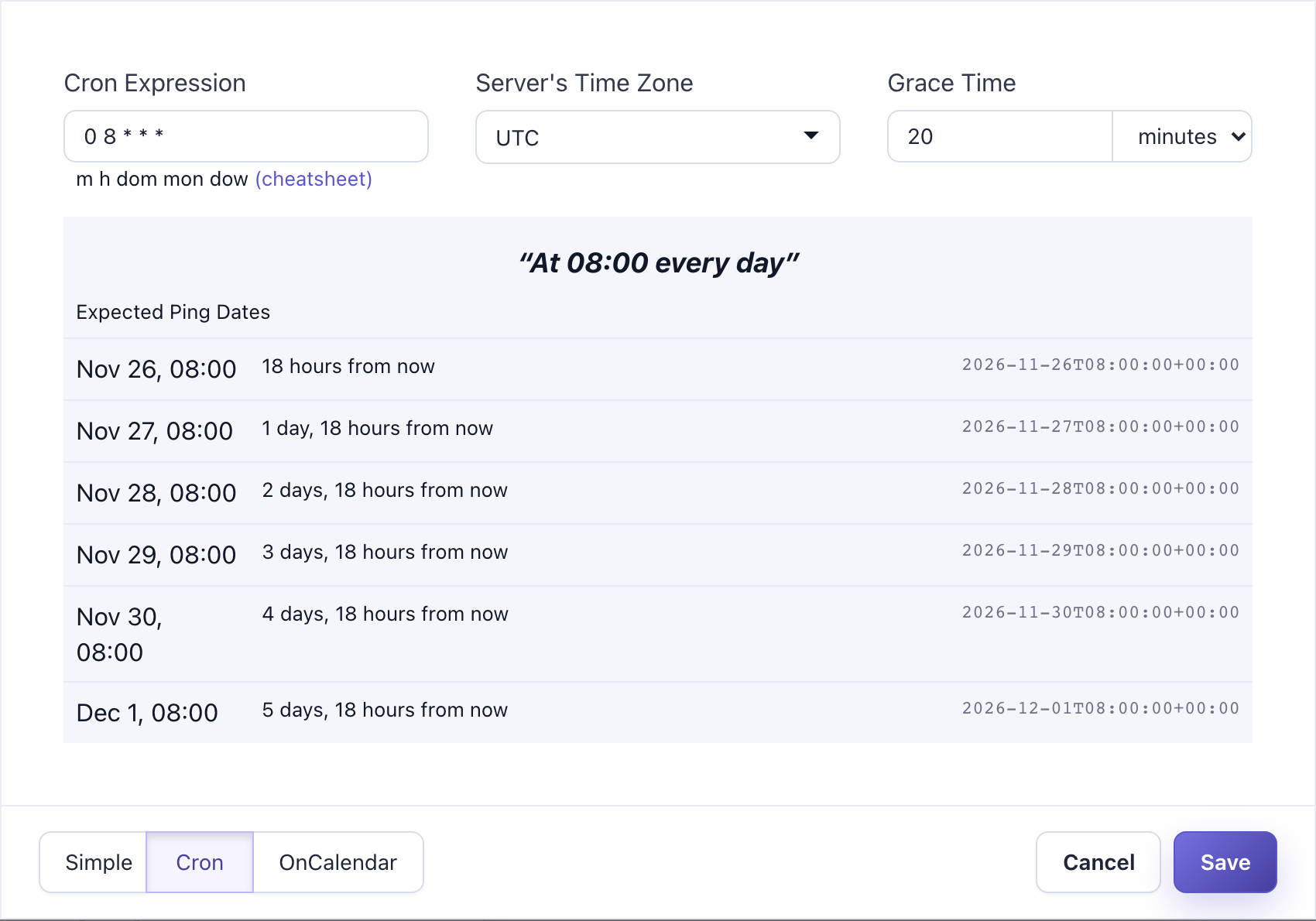
Every check created through MCP returns a stable 40-character unique_key and a clickable dashboard_url, without exposing your check UUID or private ping URL. You can also ask your connected assistant to call get_setup_snippet (platform claude-routine or cursor-automation) to generate the ready-to-paste reporting block automatically.
Step 2: Add Watchgoose run reporting to cloud scheduled agents
Append the short block below to the end of your task instructions, replacing <your-40-char-unique-key> with the unique_key returned by Watchgoose.
Claude Code cloud scheduled tasks (formerly Routines)
Enable the Watchgoose connector on the cloud scheduled task (with Read and write access to your chosen project), then add:
## Watchgoose run reporting
- At the very start of the run, call the Watchgoose MCP tool `report_run` with `{ "unique_key": "<your-40-char-unique-key>", "status": "start" }`.
- Only after the primary task is verified complete (for example, the summary PR or triage comments were actually created), call `report_run` with `{ "unique_key": "<your-40-char-unique-key>", "status": "success", "summary": "<short one-line outcome with counts>" }`.
- If you hit an auth error, missing tool, or unrecoverable failure and cannot finish the main task, call `report_run` with `{ "unique_key": "<your-40-char-unique-key>", "status": "fail", "summary": "<short error reason>" }`. Do not call `status: "success"` if the work was skipped.
Claude Desktop also offers local scheduled tasks, which are a separate feature that runs on your workstation while the app is open. If you use Claude Desktop local scheduled tasks with the hosted Watchgoose MCP connector enabled, the same report_run block works; otherwise monitor the local script with the shell wrapper below.
Cursor Automations
Attach the hosted Watchgoose MCP server (https://mcp.watchgoose.com/mcp) to your Cursor Automation environment and add the same reporting rules:
## Watchgoose run reporting
- Before starting work, call Watchgoose `report_run` with `{ "unique_key": "<your-40-char-unique-key>", "status": "start" }`.
- After verifying the expected output exists (PR opened, report written, or tests passed), call `report_run` with `{ "unique_key": "<your-40-char-unique-key>", "status": "success", "summary": "<short one-line outcome>" }`.
- On any unrecoverable error or missing prerequisite, call `report_run` with `{ "unique_key": "<your-40-char-unique-key>", "status": "fail", "summary": "<short error reason>" }`. Never report success when the main task was skipped.
Keep summary short and free of secrets or customer PII. Watchgoose stores the summary in the check's Events view for human inspection in the dashboard; its MCP read tools (list_pings and get_last_failure) never send ping body contents back to AI clients.
Codex scheduled tasks
OpenAI's Codex scheduled tasks can use installed plugins and connected tools, and execute under your default sandbox settings. You have two options:
- Via the Watchgoose ChatGPT/Codex plugin (recommended when enabled): Connect the Watchgoose plugin (backed by
https://mcp.watchgoose.com/mcpwith Read and write access) and append the same## Watchgoose run reportingblock above so the task callsreport_rundirectly without needing shell egress or a ping URL in the prompt. - Via the shell wrapper below: If your Codex scheduled task runs a shell command instead of using the Watchgoose plugin, note that Codex's default
workspace-writesandbox blocks outbound network access. Acurlheartbeat will silently fail to reach Watchgoose unless you explicitly allow outbound network access in your sandbox or environment configuration.
Monitor Codex CLI, Claude Desktop, and self-hosted agents with deliverable checks
For local codex exec or claude -p cron jobs, Claude Desktop local scheduled tasks without the MCP connector, OpenClaw cron, and Python agent workers, use a shell wrapper that pings Watchgoose over HTTPS after verifying a concrete deliverable (such as a valid non-empty JSON report). If you run this wrapper inside a sandboxed environment (including Codex's default workspace-write sandbox), make sure outbound HTTPS access to watchgoose.com:443 is permitted. Do not rely only on the CLI's exit code, because an agent CLI can exit 0 after printing an apology instead of producing the expected output.
#!/usr/bin/env bash
set -uo pipefail

URL_FILE="${WATCHGOOSE_URL_FILE:-$HOME/.config/watchgoose/agent-triage.url}"
IFS= read -r ping_url < "$URL_FILE" || ping_url=""
report_file="/var/lib/agents/triage-$(date -u +%Y%m%d).json"
err_log="$(mktemp)"
trap 'rm -f "$err_log"' EXIT

ping_wg() {
    local suffix="$1"
    local body="${2:-}"
    [ -n "$ping_url" ] || return 0
    if [ -n "$body" ]; then
        printf '%s' "$body" | curl --disable --silent --fail --globoff \
            --connect-timeout 3 --max-time 10 --retry 3 --retry-max-time 20 \
            -A "agent-nightly-triage" \
            --data-binary @- --output /dev/null --config /dev/fd/3 3<<EOF 2>/dev/null || true
url = "${ping_url%/}/${suffix}"
EOF
    else
        curl --disable --silent --fail --globoff \
            --connect-timeout 3 --max-time 10 --retry 3 --retry-max-time 20 \
            -A "agent-nightly-triage" \
            --output /dev/null --config /dev/fd/3 3<<EOF 2>/dev/null || true
url = "${ping_url%/}/${suffix}"
EOF
    fi
}

ping_wg "start"

timeout 900 /usr/local/bin/run-triage-agent --output "$report_file" 2>"$err_log"
rc=$?
if [ "$rc" -ne 0 ]; then
    ping_wg "$rc" "agent exited ${rc}: $(tail -c 500 "$err_log")"
    exit "$rc"
fi

# Verify a real deliverable before reporting success.
if [ ! -s "$report_file" ] || ! jq -e '.status == "ok" and (.items_processed | type == "number")' "$report_file" >/dev/null 2>>"$err_log"; then
    ping_wg "fail" "deliverable validation failed: $(tail -c 500 "$err_log")"
    exit 1
fi

summary="$(jq -r '"processed=" + (.items_processed | tostring)' "$report_file")"
ping_wg "0" "$summary"
Using timeout 900 prevents a stuck LLM API call or infinite tool loop from hanging overnight (returning exit code 124 on timeout), and capturing rc=$? directly before the if check guarantees Watchgoose receives the real non-zero exit code rather than 0.
Step 3: Let the first real scheduled run arm the check
Do not tell an AI assistant to send a fake report_run test ping just to turn the check green. A synthetic success ping arms the check before your task's OAuth connector or prompt wiring is actually tested, which creates a false sense of security.
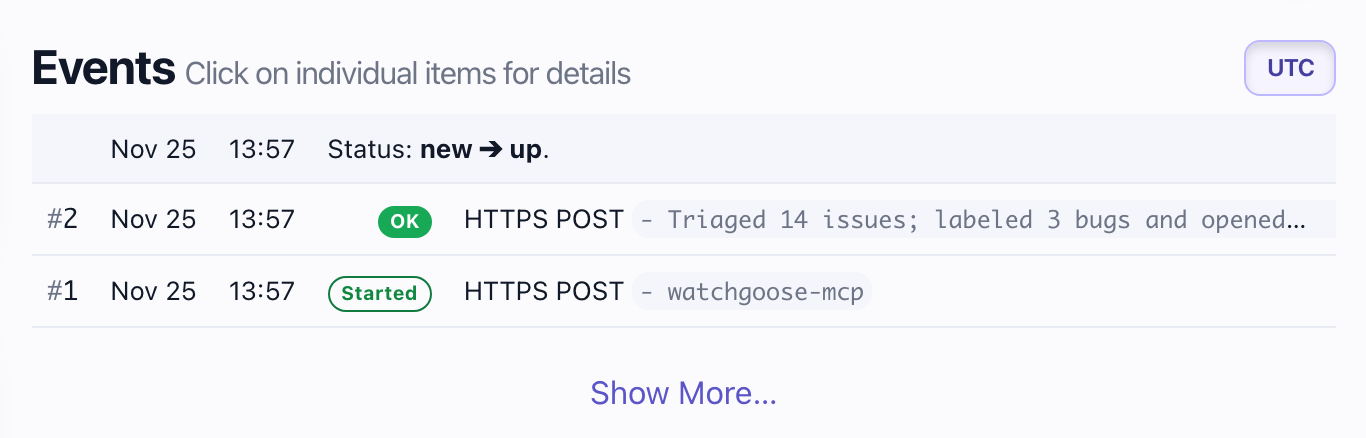
Instead, trigger one real execution of your Claude Code cloud scheduled task, Cursor Automation, or local wrapper. Open the check's Events view in Watchgoose and confirm you see Started followed by OK (watchgoose-mcp with the run summary), moving the check from New to Up.
Why did my scheduled agent check go Down?
- Check Events for an explicit
failsummary. If the agent ran and hit a permissions or tool error, it reportedstatus: "fail"along with its one-line reason. - Look for a
Startedevent with no matchingOK. That means the task began on time but hit a timeout, context limit, or approval wait before finishing. Check the run transcript and either simplify the prompt or raise the grace window. - No
Startedevent at all. The scheduler itself did not fire, or the task's Watchgoose OAuth connection expired or was revoked (remember Cursor sends no alert if an MCP login is rejected). Re-authenticate the connector in your AI client (Watchgoose OAuth grants stay active for 30 days from each refresh, up to one year) and confirm the schedule is enabled. - Tool unavailable on local stdio. If your automation runs via the local
npx watchgoose-mcpstdio package with a project API key,report_runis intentionally not registered; use the hosted OAuth endpoint (https://mcp.watchgoose.com/mcp) or the HTTPS wrapper above with a secretWATCHGOOSE_URL_FILE.
Frequently asked questions
Does using report_run put my Watchgoose ping URL into the AI prompt?
No. report_run addresses checks by their 40-character unique_key over your authenticated OAuth MCP connection. Your check UUID and private ping URL are never exposed to the AI client or stored in prompt text.
Why shouldn't I use report_run as a synthetic test ping for a normal cron job?
Calling report_run with status: "success" marks the check as Up and starts scheduled missed-run monitoring. For external cron, Docker, or Kubernetes jobs, sending a fake success ping from chat hides whether your actual server can reach Watchgoose. Reserve report_run for real AI agent executions.
Can an AI client read my job's log summaries back through Watchgoose MCP?
No. Watchgoose's privacy boundary never sends ping body contents back to connected AI clients. get_last_failure returns only structured failure metadata (reason, downtime duration, exit status, and whether a body was attached) plus a dashboard_url so a human can open the log directly in Watchgoose.
What happens if a scheduled AI agent finishes the work but forgets to call report_run?
If the agent omits the final status: "success" call, Watchgoose alerts you when the grace window expires. Putting the ## Watchgoose run reporting block at the very end of the prompt and keeping the task focused makes tool compliance reliable; for strict deterministic guarantees, run the agent via CLI inside a shell wrapper that pings Watchgoose after verifying the output file.
Does Watchgoose MCP work with read-only access for scheduled agents?
No. report_run writes a run signal to your check, so the Watchgoose OAuth connection attached to the scheduled task needs Read and write access for that project. Keep separate read-only connections for interactive debugging or monitoring reviews where you do not want an assistant modifying checks.